Print management
Office Printer Placement: Where to Put the Shared Printer
Written by Printer.business Editorial Team · Updated
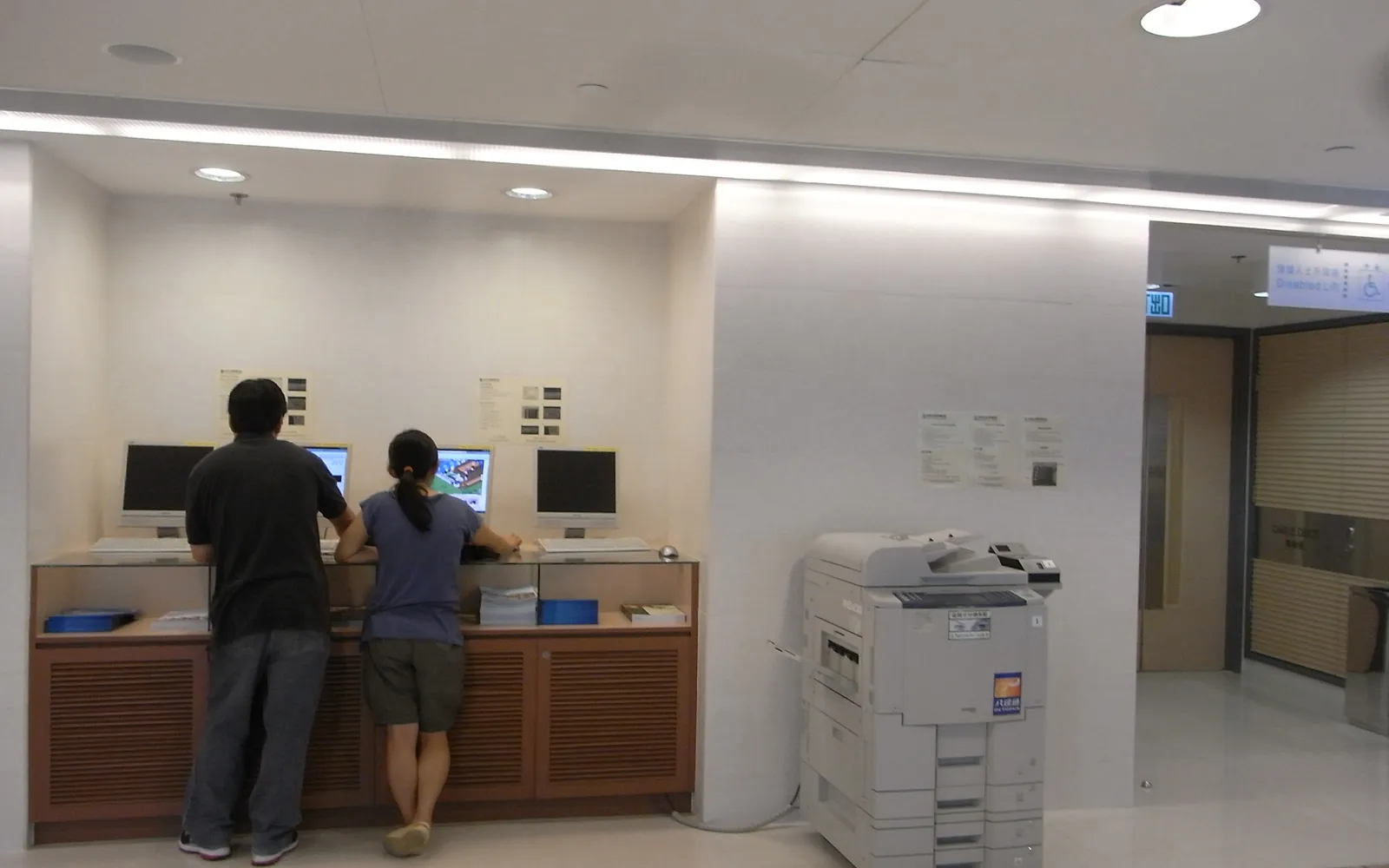
Office printer placement looks like a small decision, but it shapes how people print every day. A printer that is too far away leads to requests for personal desktop printers. One that is too close to a desk annoys the person sitting next to it with noise, heat and constant visitors. One in the wrong public spot leaves confidential pages in reach of anyone walking by. This guide explains how to choose a good spot for shared printers and copiers in a small office, and what to check before the device arrives.
Start with people, not floor plans
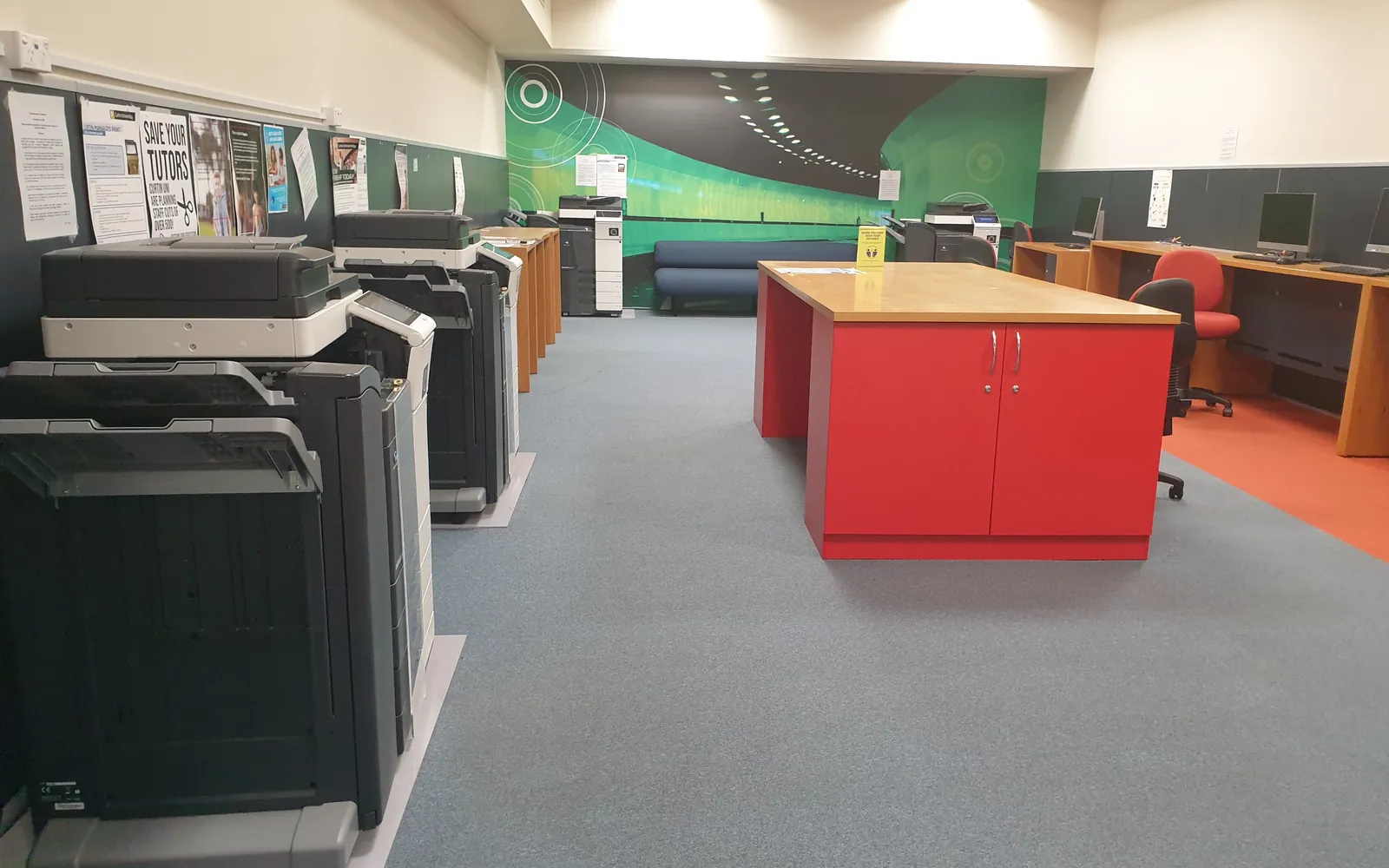
Begin by working out who prints and how much. Printer counters, your printer fleet monitoring data or an office print audit show which teams print most. Mark the heaviest users on a floor plan. The best location is usually in a common area central to those users.
This also answers how many devices you need. If one location cannot serve everyone within a reasonable walk, you may need a second device rather than a more powerful one. Our guide on how many printers an office needs covers that question in detail.
Walking distance and convenience
There is no universal distance rule. A practical aim is a walk short enough that people do not feel they need their own printer, and long enough that the printer is not in someone’s workspace. Signs that placement is wrong include:
- people saving up print jobs or avoiding printing documents they need;
- requests for desktop printers “because the shared one is miles away”;
- a queue of people regularly standing at one device while another is idle.
Noise and disruption
Printers and copiers make noise when warming up, printing, stapling and folding. A busy device also brings a steady flow of people, conversation and paper handling. Keep shared printers away from:
- desks used for phone or video calls;
- quiet focus areas and meeting rooms;
- reception desks where staff talk to visitors.
Office printer noise is not normally at levels covered by occupational noise limits, but it is a real distraction. A corridor alcove, small copy room or partitioned print area usually works better than the middle of an open-plan floor.
Heat, ventilation and emissions
Laser printers and copiers use heat to fuse toner and give off warm air. While printing, they can also release small amounts of ozone and ultrafine particles. Research summarised in public reviews has not established clear health effects at normal office levels, and regulators’ reviews have described the direct risk as low. Sensible placement still makes sense:
- do not place a busy laser printer or copier right beside someone’s desk;
- avoid small closed cupboards for high-volume devices;
- keep the clearances around vents that the manufacturer specifies;
- make sure the room has normal office ventilation.
If staff report odours or irritation near a device, take it seriously: check that it is serviced, that filters (where fitted) are maintained, and consider moving it. Some eco-labels, such as Germany’s Blue Angel, set emission limits for printers, which you can include in purchase requirements.
Power and network
Check the practical connections before the device arrives:
- Power: a suitable wall socket close to the device. Avoid running large copiers from extension leads shared with other equipment unless the manufacturer allows it.
- Network: a wired network point is usually more reliable than Wi-Fi for shared printers. If you use direct IP printing or a print server, reserve the printer’s address so it does not change.
- Phone line: only if the device will send faxes over a traditional line. See our guide to online fax vs fax machines.
Space and service access
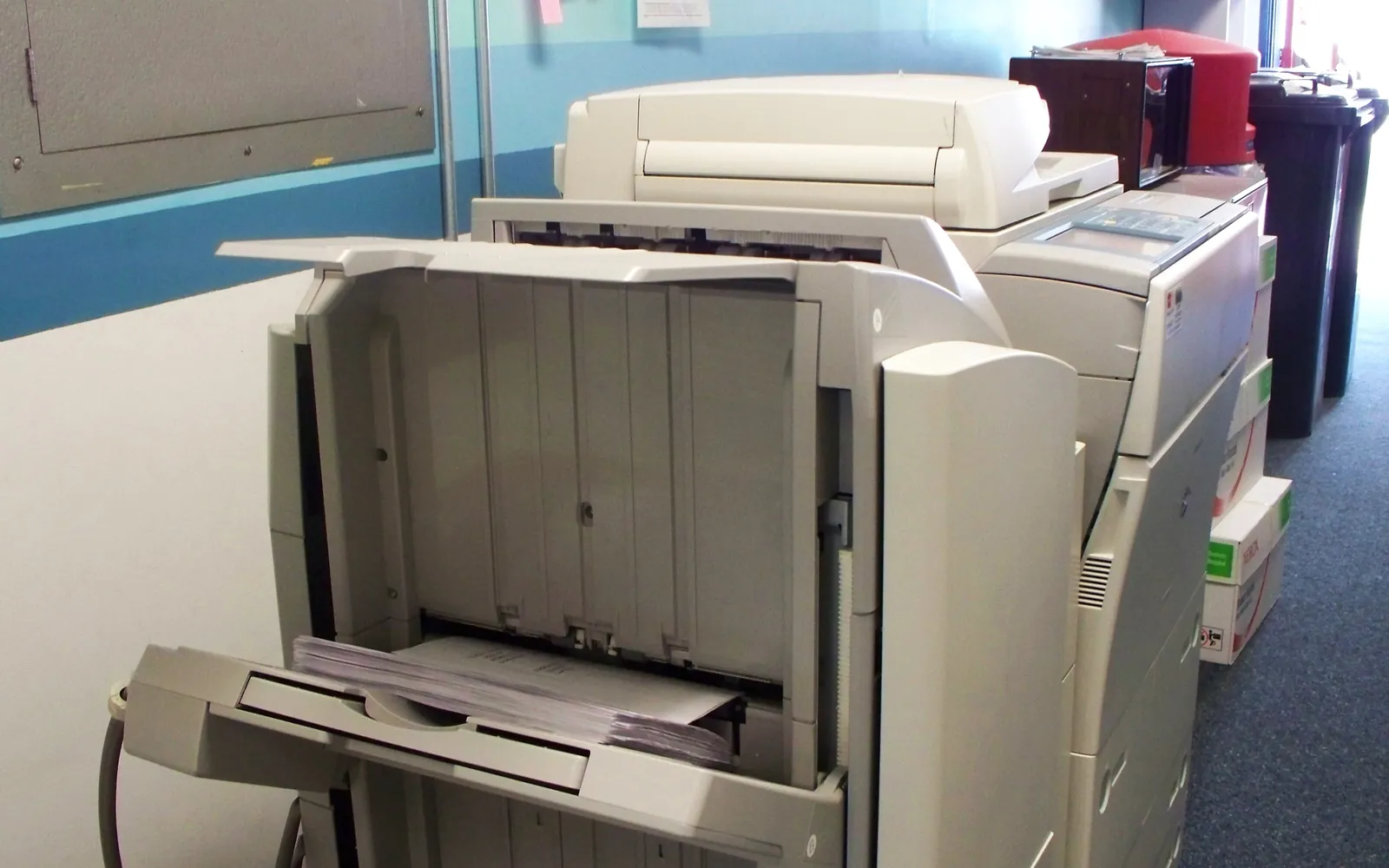
Measure the space with every door, drawer and finisher fully open. Floor-standing copiers and finishers need room for technicians to open side panels and pull out units. Also plan for:
- a shelf or cupboard nearby for a few reams of paper and spare toner;
- a recycling bin and, where needed, a locked confidential waste bin;
- a clear route for deliveries and for moving the device later.
Our guide to office printer paper explains why paper should be stored flat and away from damp, which is worth considering when you choose where the stock will live.
Privacy and security
Location affects confidentiality. Documents left in output trays near reception, shared corridors or meeting rooms can be read or taken by visitors. Options include:
- placing devices in staff-only areas;
- using secure print release, so jobs only print when the user is at the device;
- keeping HR, finance and client documents on a device in a restricted area.
Physical placement is one part of network printer security. Device settings, firmware updates and controlled scan destinations matter just as much.
Small offices and shared buildings
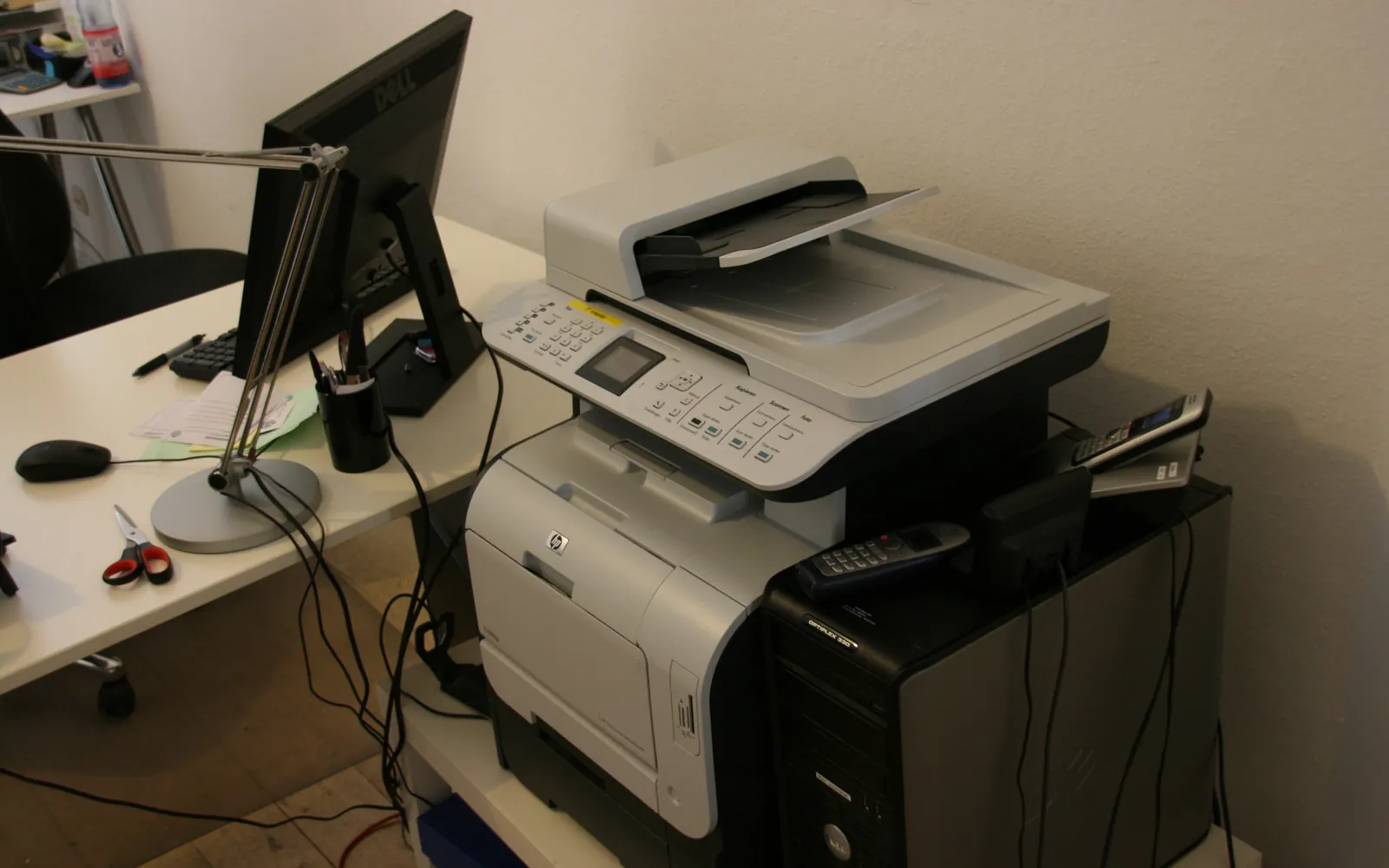
In a small office of a few people, there may be no spare corridor or copy room. Common solutions are a low cabinet at the edge of the main room with the printer on top and paper inside, or a shelf in a kitchen or storage area if it is dry and has a power and network point. Avoid placing the printer on a desk that someone works at, even if it seems convenient at first; the noise and the stream of visitors become a daily irritation.
In shared buildings and serviced offices, the landlord may provide a common printer. Check who can see output trays, whether jobs are released only with a code or card, and who wipes the device when tenants leave. If those answers are unclear, keep sensitive printing on your own device inside your own space.
Make the print area easy to use
Once the location is chosen, a few small touches make it work better:
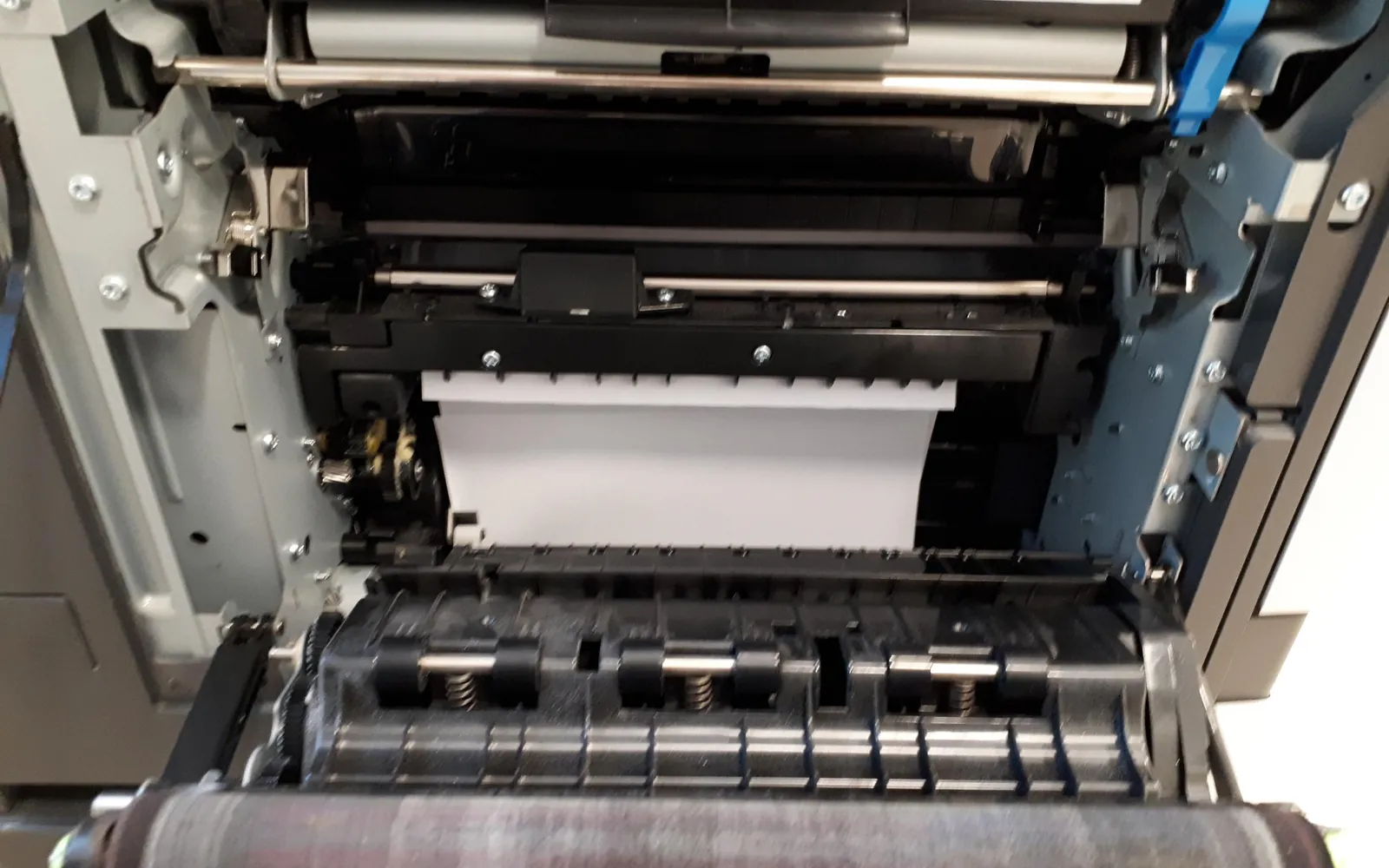
- a short printed note with how to clear common jams, load paper and who to contact for faults;
- a clear place for spare paper and toner, so people do not open new boxes on the floor;
- good lighting, so users can read the control panel and check their output;
- a recycling bin for misprints and, where needed, a locked confidential waste bin;
- enough clear space for one person to collect a job while another waits.
These details cost little and reduce the number of “the printer is broken” messages that are really about paper or supplies.
When you move or reorganise
Placement is not fixed for ever. Revisit it when teams grow, desks are reorganised or the office moves. Our moving office printers checklist covers the practical steps of relocating devices, including network changes and testing.
Summary
Put shared printers in a common area that is close to the main users but not inside anyone’s workspace. Keep them away from quiet and public areas, give them space and ventilation, plan power, network and storage in advance, and use secure release where documents are sensitive. Then check after a month and adjust.
Frequently asked questions
Where should a shared office printer go?
In a common area that most users can reach in a short walk, away from individual desks and quiet work areas, and out of reach of unaccompanied visitors. A corridor alcove, small copy room or open print area near the main team usually works.
Is it safe to sit next to a laser printer?
Laser printers and copiers can release small amounts of ozone and fine particles while printing. Research reviews have not found clear evidence of harm at normal office levels, but it is sensible not to place a busy printer right beside someone's desk and to keep the area ventilated as the manufacturer recommends.
Does a copier room need ventilation?
Yes, a room containing busy copiers or printers should have normal office ventilation, because the devices give off heat and some emissions. Avoid putting high-volume devices in small closed cupboards. Check the manufacturer's installation guidance for clearances and room conditions.
How far should staff walk to a printer?
There is no fixed rule. Aim for a walk short enough that people do not ask for personal desktop printers, but long enough that the device is not in anyone's workspace. Many offices aim for one shared device per team area or floor.
Can a printer go in a reception area?
Only if documents cannot be left exposed to visitors. Use secure print release, keep scan destinations controlled, and lock paper trays with special stock. Otherwise place it behind reception in a staff-only area.
Sources
Printer.business Editorial Team
Editorial team
The Printer.business editorial team writes independent guides on choosing, costing and managing office printers, using primary sources such as ISO/IEC standards, ENERGY STAR, NIST and the UK NCSC.