Print management
Moving Office Printers: A Checklist for an Office Move
Written by Printer.business Editorial Team · Updated
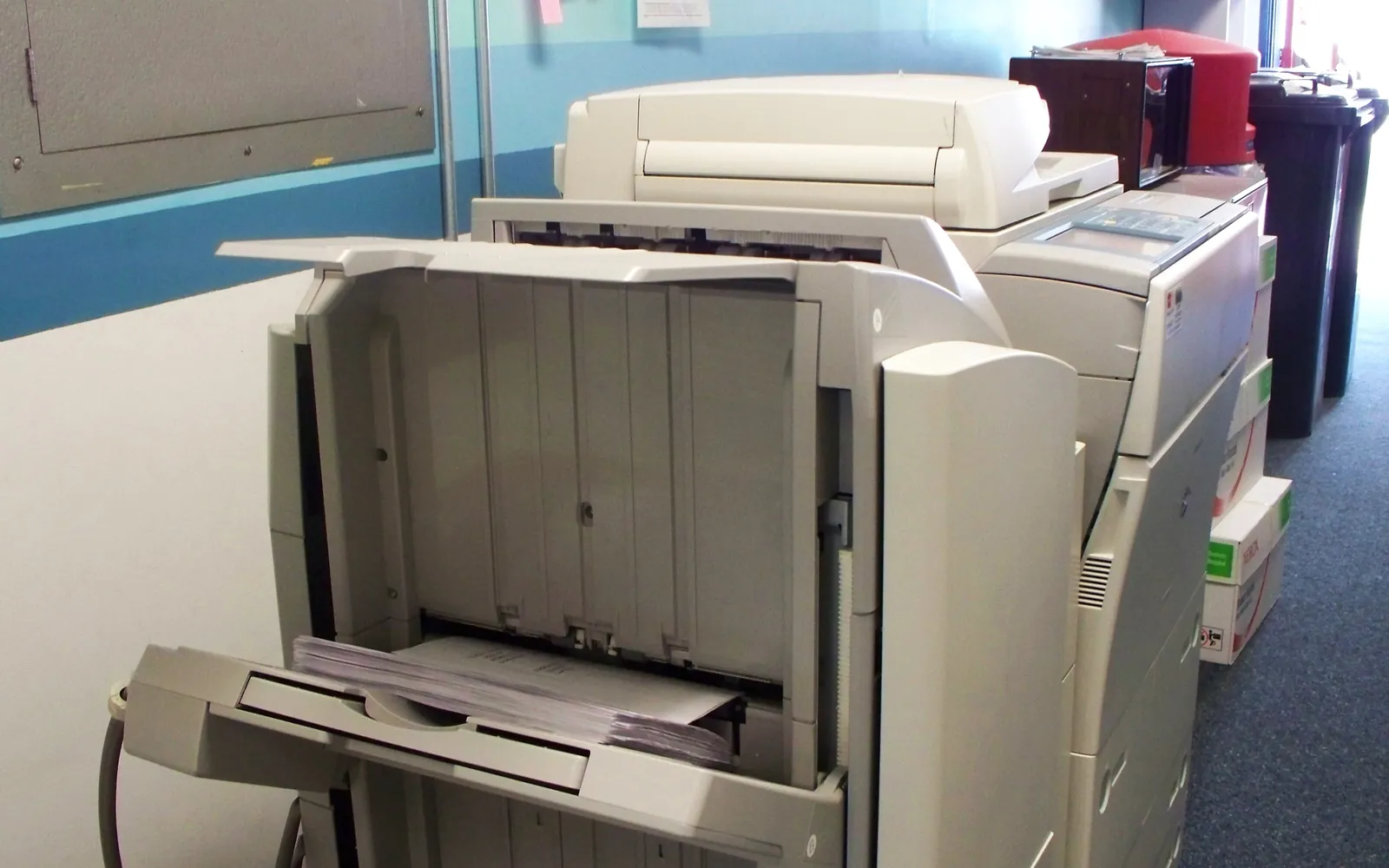
Moving office printers is easy to underestimate. Desktop printers travel like any other IT equipment, but floor-standing copiers are heavy, often leased, and full of settings that people only notice when scanning stops working on the first morning in the new office. This checklist covers the full job: contracts, records, physical moving, network changes and testing. It suits a small office moving a handful of devices; larger moves follow the same steps with more planning.
Step 1: List every device
Start with a complete list. For each printer, copier and scanner, record:
- model and serial number;
- whether you own it, lease it or it is supplied under a managed print contract;
- current IP address and hostname;
- where it sits now and where it will go;
- who uses it, and any special functions such as fax, finishing or secure release.
If you already ran an office print audit or use printer fleet monitoring, most of this is already in your records.
Step 2: Check leases and service contracts
Leased and managed devices belong to someone else, and the contract usually says how they may be moved. Read the lease and service agreement and look for:
- a requirement to notify the leasing company or supplier of a new location;
- a requirement that the supplier, or an approved mover, relocates the device;
- any relocation charge and how much notice is needed;
- how a move affects service response times at the new address.
Contact the supplier early; technicians for relocations can book up weeks ahead. If a lease ends near the moving date, use the move as a decision point. Our guides to the end of a copier lease and when to replace an office printer help you decide whether to move, return or replace.
Step 3: Plan the new layout
Before moving day, walk the new office and confirm for each device:
- Power: a suitable socket close by. Large copiers can need a dedicated circuit; check the manufacturer’s installation requirements.
- Network: a working network point, on the right network segment, near the device.
- Space: room for paper drawers, side panels and finishers to open, and for ventilation.
- Access: lift sizes, door widths, stairs and floor loading on the route in.
It is also a good moment to rethink how many devices you need and where they should be. Our guide on how many printers an office needs covers placement and walking distance.
Step 4: Record settings and meter readings
Before anything is unplugged, capture what you will need to rebuild:
- Meter readings for every device under a click charge contract, ideally with a photo of the reading or printed meter report. They protect you if the billing at the new site looks wrong; see copier cost per click.
- Configuration pages printed or saved for network settings.
- Address books and scan destinations, exported where the device allows it.
- Fax settings and the fax line number, if you still use fax.
- Custom settings such as default duplex, mono defaults, tray assignments and user codes.
Step 5: Prepare and move the devices
Desktop printers can travel with other IT equipment: remove paper, close trays, and pack them upright with padding. Toner and ink cartridges can leak if the device is tipped, so follow the manufacturer’s transport instructions.
Floor-standing copiers and multifunction devices need more care:
- follow the manufacturer’s or supplier’s preparation steps, which may include locking the scanner unit, removing or securing toner and waste toner containers, and detaching finishers and high-capacity trays;
- keep them upright and move them with suitable equipment and enough people; manual handling of heavy equipment is a workplace safety issue, and the UK HSE guidance on manual handling is a useful reference;
- protect touch screens and panels during transport;
- let devices reach room temperature before switching them on if they were moved through cold conditions, as condensation can form inside.
If the supplier moves leased devices, they handle preparation; your job is to make sure the route and the destination are ready.
Step 6: Reconnect and update the network
This is where most problems appear. If the new office uses the same network addressing, printers can keep their addresses. If not, each device needs a new address, preferably fixed by a DHCP reservation, and everything that used the old address must be updated:
- Print queues on the print server or on each computer. Our guide to print servers vs direct IP printing explains why a print server makes this easier: update the port once, and users keep their queue.
- Deployment rules, such as printers deployed with Group Policy or cloud print connectors.
- Scan to folder and scan to email settings. A new file server path or mail relay breaks scanning silently; see our scan to folder setup guide.
- Monitoring and secure release systems that point at the old addresses.
- Firewall rules at the new site, if devices sit on a separate network segment.
Use the move to fix old problems: change any default admin passwords, update firmware and switch off unused services, following our network printer security checklist.
Step 7: Test before the first working day
Test from more than one computer and user account:
- Print a test page from each queue, in mono and colour, single and double-sided.
- Copy a document using each tray and the finisher, if fitted.
- Scan to email and to each common folder destination, and check that files arrive with the right names.
- Test secure print release with a user card or PIN.
- Send and receive a fax, if you still use one.
- Record meter readings again and confirm with the supplier that the device is registered at the new address.
Put a short note on each device with how to get help, and expect a few queries on the first morning.
Common problems after a move
Most first-day problems fall into a few patterns, so it helps to know where to look:
- Printer shows as offline. The queue still points at the old address, or the device picked up a new address from DHCP. Check the configuration page and the queue’s port.
- Scans fail with no error on screen. The scan-to-folder path or the account used for scanning changed, or the mail server for scan to email is not reachable from the new network.
- Jobs print in colour or single-sided. Default settings were reset during the move or the device was reinstalled with a different driver. Reapply your defaults.
- Secure release does not recognise cards. The release server or the card reader configuration still uses old addresses.
- Image lines or smudges on copies. The scanner glass or transfer parts were disturbed in transport; ask the supplier to inspect it.
Keep the records from Step 4 at hand until these are cleared.
If you are deciding where each device should go in the new office, our office printer placement guide covers walking distance, noise, ventilation and privacy.
Summary
Moving office printers goes smoothly when you treat it as both a removals job and an IT change. List every device, check lease and service terms, plan power, network and space, record settings and meter readings, move large devices properly, update every queue and scan destination, and test thoroughly before the office reopens. Use the move to remove devices you no longer need and to tighten security on the ones you keep.
Frequently asked questions
Can I move a leased copier myself?
Check your lease and service agreement first. Many agreements require you to tell the leasing company about a change of location, and some require the supplier or an approved mover to move the device. Moving it yourself may breach the agreement or affect who pays if it is damaged.
Do printers need new IP addresses after an office move?
Only if the network addressing changes. If the new office uses a different address range, each printer needs a new address or reservation, and every print queue, scan destination and monitoring tool that uses the old address must be updated.
How do you transport a large copier safely?
Follow the manufacturer's or supplier's preparation steps, which can include locking the scanner, removing or securing toner and waste toner, and removing finishers. Keep it upright, use suitable lifting equipment and enough people, and protect panels and touch screens.
Should we replace printers instead of moving them?
An office move is a good moment to check. If a device is near the end of its lease or life, costs a lot to move, or no longer fits your needs, replacing it at the new site can be simpler. Compare the moving cost and remaining life before deciding.
Sources
Printer.business Editorial Team
Editorial team
The Printer.business editorial team writes independent guides on choosing, costing and managing office printers, using primary sources such as ISO/IEC standards, ENERGY STAR, NIST and the UK NCSC.