Print management
Network Printer Security: A Checklist for Small Offices
Written by Printer.business Editorial Team · Updated
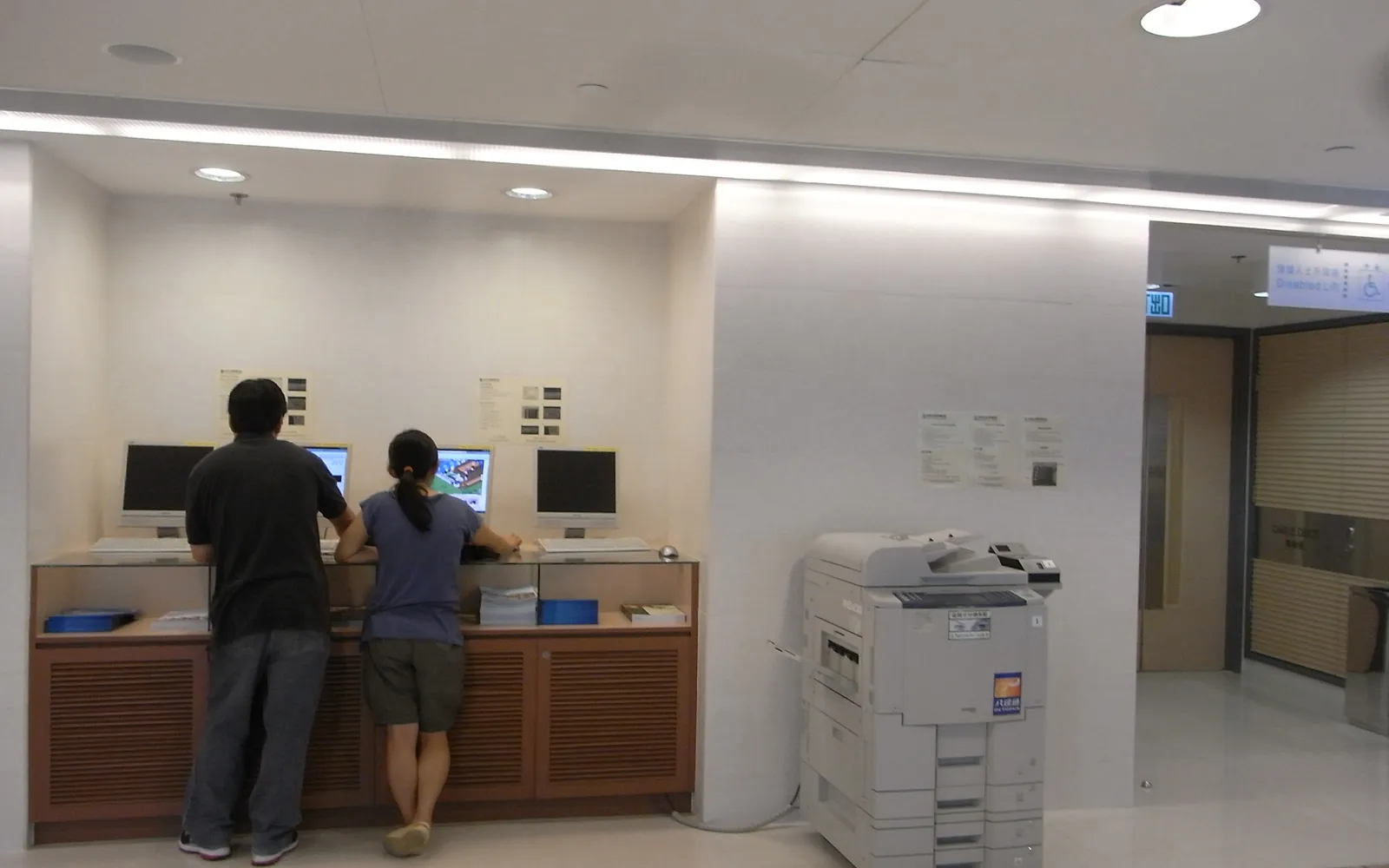
Network printer security is easy to overlook because printers feel like appliances. In reality, an office printer or MFP is a networked computer: it runs firmware, hosts a web admin page, stores print and scan jobs, and often holds credentials for email and file shares. This checklist covers what a small office should configure when a printer is installed, while it is in use, and when it leaves. To build these checks into routine care, use our office printer maintenance checklist; for the computer side, our guide to the universal print driver explains how fewer driver packages reduce risk.
Why printers are a target
- They are always on and often not monitored like PCs.
- Default admin passwords are sometimes left unchanged.
- Firmware is updated less often than computers.
- MFPs store copies of documents and scan-to-email or folder credentials.
- They often support legacy protocols that are switched on by default.
Vulnerabilities in printers and print software are published in the NIST National Vulnerability Database, and some print-related flaws have appeared in CISA’s catalogue of known exploited vulnerabilities. The Windows Print Spooler flaw known as PrintNightmare (CVE-2021-34527) is a well-known example on the computer side of the print path.
At installation
- Change the default admin password to a unique, strong one stored in your password manager.
- Update firmware to the latest version from the manufacturer, and enable automatic or scheduled update checks if available.
- Disable unused protocols and services, such as Telnet, FTP, older SNMP versions, unused printing protocols, AirPrint or Wi-Fi Direct if you do not need them.
- Enable encrypted connections: HTTPS for the admin page, IPPS (IPP over TLS) for printing, and TLS for scan to email.
- Use current SMB versions for scan to folder, with a dedicated low-privilege account.
- Restrict the admin page to IT staff, and if possible to a management network.
- Set the clock and time zone correctly so logs make sense.
Network placement
- Put printers on a separate network segment or VLAN where practical.
- Allow only the traffic printers need: print traffic from user networks, management from IT, scan traffic to email and file servers.
- Do not expose printers to the internet. If staff print remotely, use a secure print service or VPN rather than opening ports.
While in use
- Patch printers and print servers on a schedule, as the NCSC recommends for all devices.
- Review logs occasionally, or send them to a central log system if you have one.
- Use secure release for HR, finance, legal and client documents so they are printed only when the owner is at the device. See secure print release and pull printing.
- Encrypt stored data and enable automatic overwrite of completed jobs if the device supports it.
- Review address books and scan destinations periodically so old credentials and recipients are removed.
People and policy
Technical settings work best with clear rules. Your office print policy should say where confidential documents may be printed, that output must be collected promptly, and how to report a lost document or a suspicious device. The NCSC Small Business Guide offers broader advice on basic security habits.
When a printer leaves
Before a printer or MFP is sold, returned at the end of a lease, sent for repair or recycled:
- Delete address books, stored jobs and user data.
- Run the device’s secure erase or initialise function.
- For devices with hard drives or SSDs, sanitise or remove and destroy the storage. NIST SP 800-88 describes clear, purge and destroy methods.
- Get written confirmation if a dealer or managed print provider does the wiping.
- Record the device, date and method.
Buying with security in mind
When you shortlist devices, ask whether they support signed firmware, storage encryption, secure erase, role-based admin accounts and logging. Our multifunction printer guide and office printer buying guide include these points.
Related checklists
Three tasks in this checklist have their own guides. For the mail side of scanning, including TLS versions and the retirement of basic authentication by some providers, see scan to email setup. For the end-of-life step, see copier hard drive data security. For the print path on computers and servers, including the Point and Print changes after PrintNightmare, see print server vs direct IP printing. Healthcare offices should also read HIPAA compliant printing.
Printers that are easy to forget
Security reviews tend to focus on the big multifunction devices in the copy room. Smaller and specialist devices often sit on the same network with factory settings and are missed in every audit:
- Receipt printers at tills and in kitchens, often connected by Ethernet or Wi-Fi with a default web interface. Our guide to the receipt printer for a small business covers where they should sit on the network.
- Label printers in the warehouse or post room, which may store recent jobs with customer addresses.
- ID card printers, where the risk is less the network and more the badge software, blank cards and used ribbons that keep images of printed cards; see the ID card printer for business guide.
- Fax lines and fax modules, which bypass email filtering entirely and are easily forgotten. If you are replacing them, our online fax vs fax machine guide covers the security of each option.
Add every one of these to your device list, apply the same baseline settings as above, and check them again whenever equipment is moved. An office move is a common moment for settings to be reset and default passwords to come back; our moving office printers checklist includes a security step for that reason.
One-page checklist
- Admin password changed and stored securely.
- Firmware current; update process agreed.
- Unused protocols disabled.
- HTTPS, IPPS and TLS scanning enabled.
- Printer on its own segment, not exposed to the internet.
- Secure release for confidential printing.
- Storage encrypted and overwritten where supported.
- Sanitisation done and recorded before disposal or return.
Frequently asked questions
Can a printer be hacked?
Yes. Network printers have been affected by published vulnerabilities, and weak default settings can expose their web interface, stored documents and scan-to-email credentials. Keeping firmware updated and settings tight reduces the risk.
Do printers store copies of documents?
Many MFPs and copiers store print, copy and scan jobs on internal storage, temporarily or until overwritten. Use encryption and overwrite features if available and sanitise storage before disposal or return.
Should printers be on a separate network?
Where practical, yes. Placing printers on their own network segment and only allowing the traffic they need limits what an attacker can reach through them.
How often should printer firmware be updated?
Check for updates at least as often as you patch other devices, and apply security updates promptly. Some devices can check and install updates automatically.
Is the Windows print spooler a printer security issue?
It is part of the print path. The PrintNightmare vulnerability (CVE-2021-34527) affected the Windows Print Spooler service, so print servers and PCs need patching too, not only the printers.
Do receipt, label and card printers need the same security as office printers?
If they are on the network, yes. Change default passwords, keep firmware current where updates exist, keep them off guest Wi-Fi, and include them in your device inventory. Card printers also need their software, blank cards and used ribbons kept secure.
Sources
Printer.business Editorial Team
Editorial team
The Printer.business editorial team writes independent guides on choosing, costing and managing office printers, using primary sources such as ISO/IEC standards, ENERGY STAR, NIST and the UK NCSC.