Buying guides
How Many Printers Does an Office Need? A Sizing Method
Written by Printer.business Editorial Team · Updated
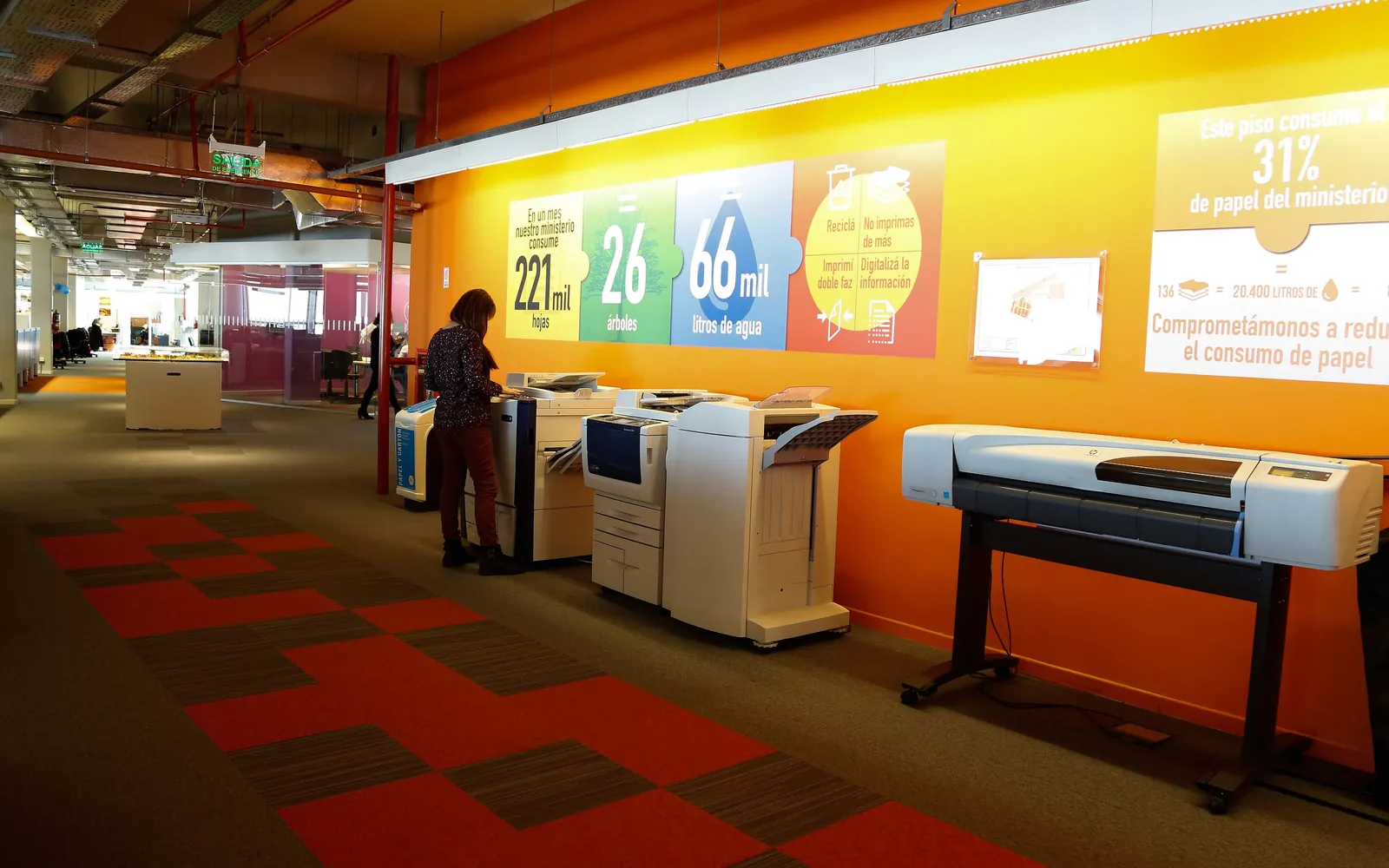
How many printers does an office need? Ask a dealer and you may hear a printer-per-employee ratio. There is no official standard for that ratio, and it ignores the things that actually matter: how much you print, how far people walk, whether printing is critical, and how confidential the documents are. This guide gives a step-by-step method for sizing a small business printer fleet from your own numbers.
Why fewer is usually better
Every printer brings its own supplies, faults, firmware updates, security settings and power use. Small desk printers also tend to have the highest cost per page. Consolidating onto fewer, well-sized shared MFPs often reduces:
- Cost per page, through larger high-yield supplies.
- Supplies stock and ordering effort.
- Devices to secure and patch (see our network printer security checklist).
- Idle energy use (see office printer energy use).
The limit is convenience and resilience: too few devices and people queue, walk too far, or stop work when one breaks.
Step 1: Measure total volume
Read the page counter on every printer and MFP, then again a month later. Add mono and colour pages separately. If you have not done this before, our office print audit gives a template.
Step 2: Compare with device capacity
Each model has a recommended monthly page volume, which is lower than its maximum duty cycle. Our duty cycle guide explains the difference. A simple check:
- Divide your total monthly volume by the recommended monthly volume of the shared device class you are considering.
- Round up. That is the minimum number of devices for capacity.
- Leave headroom for growth and busy periods such as month end.
For most small offices, capacity is not the limiting factor; layout and resilience are.
Step 3: Map walking distance
Mark where teams sit. A shared printer works best when people can reach it quickly without crossing the building or changing floors. As a practical guide:
- One device per floor is a common starting point for multi-floor offices.
- Separate rooms or wings with steady printing may each justify a device.
- Teams that print constantly, such as reception, dispatch or accounts, often need a device close by.
Step 4: Add special requirements
Some needs justify a dedicated or different device:
- A3 or finishing: see A3 vs A4 office printer.
- Colour: often one colour device is enough; see color vs black and white office printer.
- Confidential printing: secure release on shared devices usually removes the need for personal printers in HR or finance. See secure print release.
- Labels, cheques or specialist media: separate, specialist devices.
Step 5: Decide how much downtime you can accept
If one printer breaks, what happens? For some offices, a day without printing is an inconvenience. For others, such as a clinic printing prescriptions or a warehouse printing dispatch notes, it stops work. If printing is critical:
- Keep at least two devices that can take each other’s work.
- Configure both on users’ computers, or use a print server or cloud print queue that can redirect jobs. See print server vs direct IP printing.
- Check the service response time in your contract.
Step 6: Choose and place the fleet
Combine the steps: capacity sets the minimum, layout and special needs add devices, and resilience may add one more. Then:
- Decide which existing devices stay, which are replaced and which go.
- Retire the least-used and most expensive-per-page devices first.
- Set defaults (duplex, mono) and security on the remaining devices.
- Tell staff where to print and why.
Worked example (illustrative)
An office of two floors measures its monthly volume and finds most printing happens on the ground floor in accounts and reception, with light printing upstairs. It has six desk printers and one old copier. Applying the method, it chooses one shared MFP per floor, keeps colour on the ground-floor device only, adds secure release for accounts, and removes the desk printers. Upstairs staff can still print to the ground floor device if theirs fails. The numbers in your own office will differ; the logic is the same.
Remote and hybrid staff
Hybrid work changes the count. Staff who are in the office two or three days a week print less there, so shared capacity can often be reduced. At home, decide whether the business supplies printers at all. If it does, set rules: which documents may be printed at home, how confidential pages are stored and shredded, and who pays for supplies. Home printers rarely have secure release or managed firmware, so many businesses ask staff to print confidential material only in the office. Add these rules to your office print policy.
Common mistakes
- Keeping old devices “just in case”: they still use power, need supplies and stay on the network unpatched.
- Replacing like for like: a new device per old device repeats past decisions instead of fitting today’s volume.
- Ignoring the copier contract: a large leased MFP with a minimum volume should carry most of the printing, not compete with desk printers.
Review after three months
Read the counters again. Check queues at busy times, colour share, and complaints. If a device is consistently overloaded, add capacity or move it; if one is barely used, consider removing it. Our guide on how to reduce printing costs lists further changes.
Visitors, home workers and the fleet count
Two groups are easy to leave out of the count. Visitors and contractors may need to print, and the safest answer is usually a guest route to an existing shared device rather than an extra printer; see guest printing in the office. Home workers may need a printer of their own, which adds to supplies and support even if it never appears on the office floor plan. Our remote employee printing policy helps decide who gets one and who pays.
If you are cutting the number of devices, check whether you are on a contract priced per device or with minimum volumes. Our guide to managed print services pricing models explains how the contract may affect the savings from consolidation.
Summary
Size your fleet from measured volume and device capacity, then adjust for layout, special needs and resilience. For most small businesses that means fewer, well-placed shared MFPs with secure release, rather than a printer on every desk. The office printer buying guide helps you choose the devices themselves.
Frequently asked questions
What is the right number of printers per employee?
There is no official ratio. Rules of thumb quoted by vendors vary and rarely fit a specific office. Base the number on measured volume, device capacity, office layout and how critical printing is, as described in this guide.
Is one printer enough for a small office?
For a single-room office with modest volume, one well-sized MFP can be enough. Consider a second device if printing is critical to daily work, if staff are on different floors, or if confidential printing needs a separate location.
Should employees have their own desk printers?
Usually not. Desk printers tend to have a higher cost per page and add supplies and support work. Keep them only where there is a clear reason, such as constant printing in one role or confidential work without secure release.
How do I reduce the number of printers?
Measure each device's monthly volume, remove the least-used and most expensive ones first, make sure the remaining shared devices have capacity, and add secure release so people trust shared printers with sensitive documents.
Sources
Printer.business Editorial Team
Editorial team
The Printer.business editorial team writes independent guides on choosing, costing and managing office printers, using primary sources such as ISO/IEC standards, ENERGY STAR, NIST and the UK NCSC.