Print management
Office Printer Maintenance Checklist: Weekly to Yearly
Written by Printer.business Editorial Team · Updated
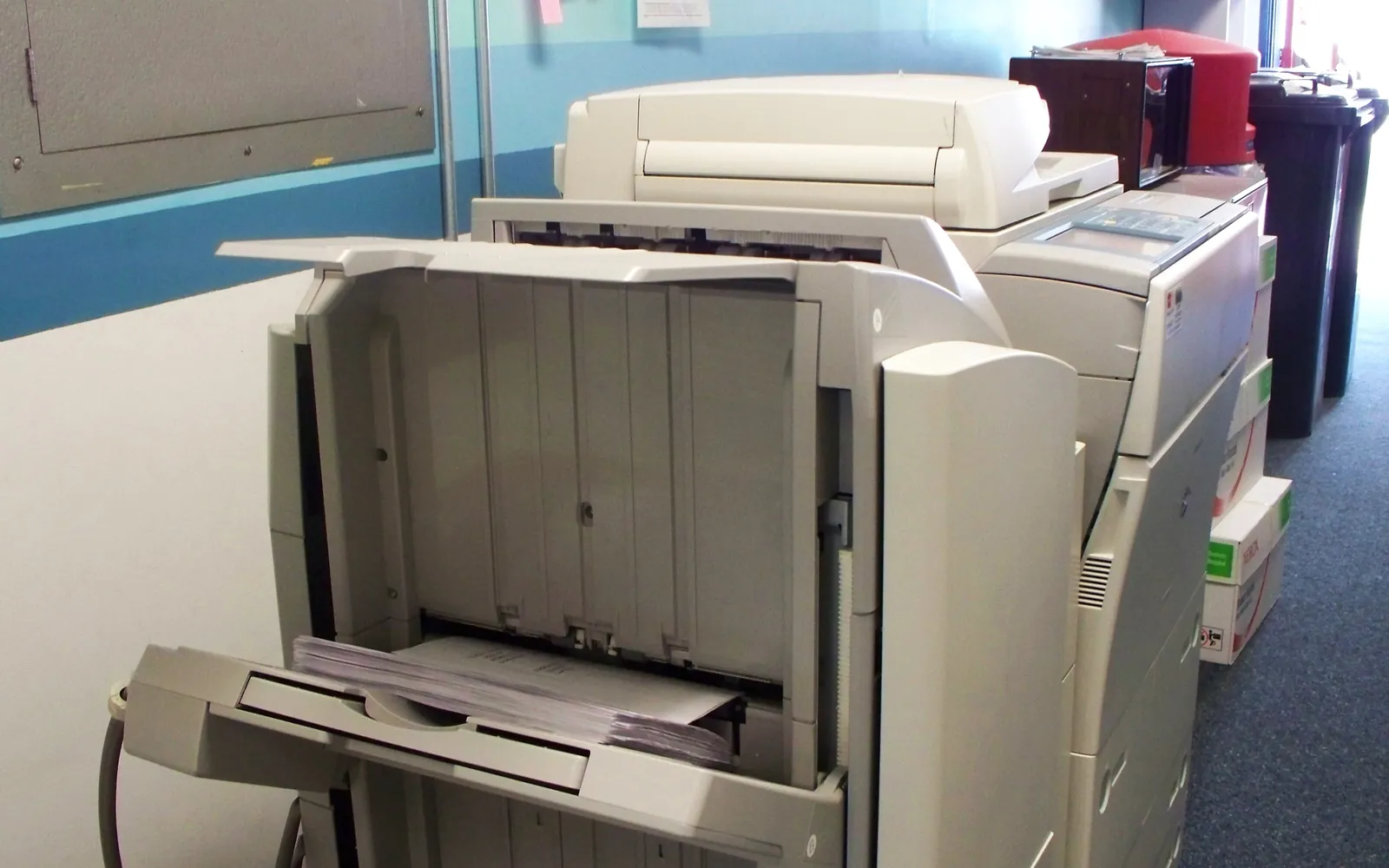
An office printer maintenance checklist turns printer care from a reaction to breakdowns into a few minutes of routine work. Most office printer problems, such as streaky scans, jams, surprise “toner empty” days and devices left on old firmware, are preventable with simple checks done on a schedule. This guide gives a practical checklist for small businesses, split into weekly, monthly, as-prompted and yearly tasks, and explains what to leave to a technician.
It applies to laser printers and multifunction printers (MFPs) as well as business inkjets. Always follow your device’s own manual where it differs; manufacturers set the schedules for their wear parts.
Start by giving each printer an owner
Shared devices suffer from shared responsibility. Name one person for each printer or each floor. That person:
- Carries out the checks below and keeps a simple log.
- Orders supplies or reports low levels to whoever orders them.
- Is the contact for your dealer or service provider.
- Knows where the manual and the admin password are kept (in your password manager, not on a sticky note).
Write the owner’s name in your office print policy so staff know whom to tell when something goes wrong.
Weekly checks (10 minutes per device)
- Scanner glass and feeder strip. Wipe the flatbed glass and the narrow glass strip used by the document feeder with a lint-free cloth, lightly dampened if the manual allows. Dust or correction fluid on the feeder strip is the classic cause of a line running down every scanned page.
- Document feeder rollers. If the manual describes a cleaning method, use it; worn or dirty rollers cause misfeeds and skewed scans.
- Control panel messages. Read any warnings: low supplies, maintenance due, paper size mismatches.
- Output and finishing. Clear the output tray, empty hole-punch waste bins and check staple cartridges on finishers.
- Paper. Make sure spare paper is stored flat in its wrapper and away from damp. Poorly stored paper causes many jams.
Monthly checks
- Page counts and supplies. Record the meter readings and supply levels. Over a few months this shows real monthly volume, which feeds directly into an office print audit and helps you avoid running out.
- Order supplies before they are urgent. Keep one spare toner per colour for busy devices, stored as the manufacturer recommends.
- Firmware. Check the manufacturer’s support page or the device’s update function for new firmware and apply it. Firmware fixes security vulnerabilities as well as bugs. The UK NCSC’s device guidance recommends keeping devices and their software up to date as a basic control, and printing-related flaws, such as the Windows Print Spooler vulnerability known as PrintNightmare, appear in CISA’s catalogue of known exploited vulnerabilities.
- Error and job logs. Look for repeated jam codes in one area, repeated service errors or failed scans. A pattern often points to one worn part.
- Energy settings. Check that sleep and auto-off timers have not been lengthened by someone who disliked waiting. Our office printer energy use guide explains sensible settings.
Replace wear parts when the device asks
Laser printers and MFPs contain parts that wear with use. Typical examples are the fuser, transfer roller or belt, feed and separation rollers and the waste toner container. Many devices group some of these in a maintenance kit with a page-count life set by the manufacturer, and display a message when it is due.
- Do not ignore the message. Running far past the due point usually ends in jams, poor fusing or a service call.
- Check who replaces it. Some kits and rollers are user-replaceable with instructions in the manual; others are service parts. Under a service or managed print contract, the provider normally fits them.
- Budget for it. Wear parts are part of the running cost and belong in your total cost of ownership calculation, not a surprise.
Toner cartridges themselves are covered by yield figures measured under ISO/IEC standards; see office printer toner costs for how to read them.
Security tasks that belong in maintenance
Printers are network computers, and routine maintenance is the easiest time to keep them in good shape:
- Confirm the admin password is not the default and is stored securely.
- Check that unused protocols and services (old file sharing versions, Telnet, unused web services) are switched off.
- Review address books and scan destinations for entries nobody uses.
- Check that the device clock is correct, since logs and certificates depend on it.
Our network printer security guide has the full list. If the device stores scans or print jobs on internal storage, plan for wiping it before disposal, as described in copier hard drive data security.
Yearly review
Once a year, step back from the individual devices:
- Volume against capacity. Compare monthly volumes with each device’s recommended monthly volume. A device constantly near its limit wears quickly; one barely used may be removable. Our guide to duty cycle and monthly volume explains the figures.
- Contracts. Note lease and service end dates, notice periods and any price escalators.
- Age and support. Check whether the manufacturer still releases firmware for each model. A device that no longer receives security updates is a candidate for replacement.
- User feedback. Ask staff which device causes the most trouble; it often matches the error log.
What to leave to a technician
Do not open covers or remove parts that the manual does not describe as user tasks. Fusers run hot, lasers and high-voltage parts are inside, and incorrect handling can void warranty or service terms. Repeated paper jams in the same place, grinding noises, burning smells and repeated service error codes all mean it is time to call your service provider.
Maintenance under a service contract
If you pay per click or under a managed print agreement, much of the work in this checklist may be the provider’s job. Read the agreement to see which tasks are yours (cleaning, paper loading, replacing toner) and which are theirs (drums, fusers, repairs). Our guides to copier cost per click and managed print services pricing models explain what is usually included.
Add two items to your routine: book collection of empty cartridges and waste toner containers through your chosen toner recycling route, and check the lease notice date each quarter so the end of the copier lease never takes you by surprise.
Printable checklist
Weekly: glass and feeder strip cleaned; panel warnings read; output and waste bins cleared; paper stored properly. Monthly: meters and supplies recorded; supplies ordered; firmware checked; logs reviewed; energy timers checked. When prompted: maintenance kit, waste toner container, rollers replaced or service call logged. Yearly: volumes, contracts, firmware support status, security settings and user feedback reviewed.
Frequently asked questions
How often should an office printer be serviced?
Follow the device's own maintenance messages and the manufacturer's schedule, which is usually based on page counts rather than time. Between services, simple weekly and monthly checks by an in-house owner prevent most problems.
What is a printer maintenance kit?
On many laser printers and MFPs it is a set of wear parts, such as the fuser and feed or transfer rollers, that the manufacturer specifies for replacement after a certain number of pages. The device usually shows a message when the kit is due.
Should we update printer firmware?
Yes. Firmware updates fix security vulnerabilities and bugs and can add support for newer network protocols. Check for updates at least monthly or enable automatic updates if the device and your policy allow it.
Can office staff clean the printer themselves?
Yes, for the user tasks in the manual: wiping the scanner glass and document feeder, clearing jams, emptying hole punch or waste bins and replacing supplies. Internal parts such as fusers and lasers are for trained service staff unless the manual says otherwise.
Do we still need a checklist if we have a service contract?
Yes. A contract covers parts and visits, but someone in the office still needs to report faults, check supplies, clean the scanner and keep firmware and security settings up to date unless the contract explicitly includes those.
Sources
Printer.business Editorial Team
Editorial team
The Printer.business editorial team writes independent guides on choosing, costing and managing office printers, using primary sources such as ISO/IEC standards, ENERGY STAR, NIST and the UK NCSC.