Buying guides
Printer for a Medical Office: Clinics, Dental and Therapy
Written by Printer.business Editorial Team · Updated
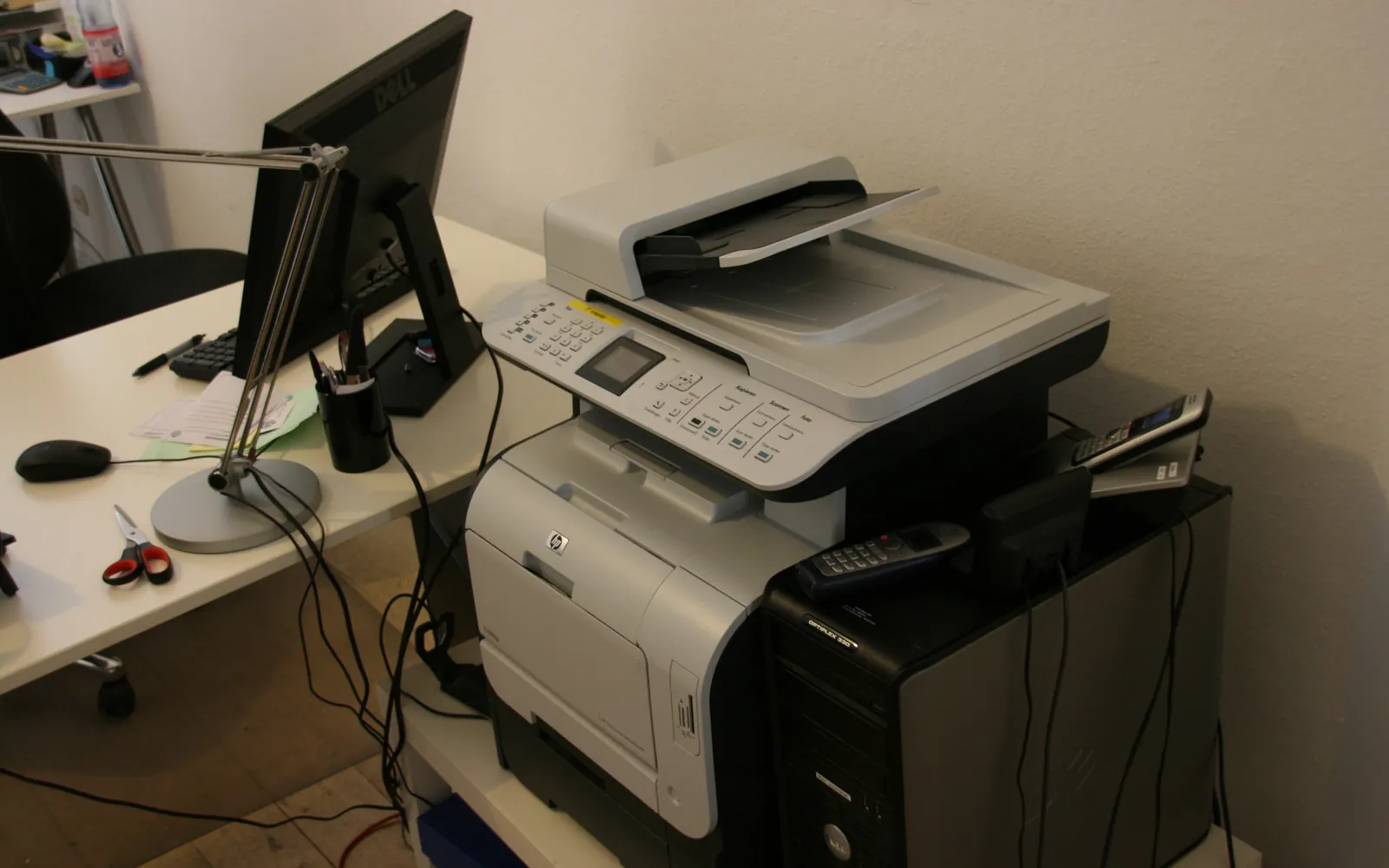
Choosing a printer for a medical office is less about print speed and more about workflow and privacy. A family practice, dental surgery, physiotherapy clinic or small specialist office prints and scans every day: intake forms, referral letters, care plans, labels and receipts. Almost every page contains health information. This guide covers which devices a small practice typically needs, the features that matter, and how to keep patient data under control. It is written for small clinics and practices, not hospitals, and it does not recommend specific brands.
Map the workflow first
Before looking at printers, walk through a typical patient visit and note every point where paper is printed or scanned:
- Check-in: intake forms, consent forms, ID and insurance cards scanned or copied.
- Consultation: care plans, exercise or aftercare sheets, referral letters.
- Samples and items: specimen labels, bag or sample labels, sometimes wristbands.
- Check-out: receipts, invoices, appointment cards.
- Back office: incoming letters scanned into the record, outgoing correspondence, billing.
This list tells you how many devices you need, where they should sit, and which functions matter. It is the same idea as an office print audit, applied to a clinic.
The front desk multifunction printer
For most small practices, the front desk device is the most important one. Look for:
- A reliable document feeder that scans single and double-sided forms in one pass. Duplex scanning saves a lot of time with two-sided intake forms.
- Scan to the right place: ideally directly into your practice management or health record system, or into a controlled folder that the system imports from. See our guides to scan to folder and scan to email for the setup details and their risks.
- Small footprint and quiet operation, because reception desks are tight and patients are close by.
- Secure print release, so printed documents do not sit in the output tray in a public area.
A business-grade multifunction printer usually fits better than a home model: it has better network management, security settings and service options.
Scanning: the job that matters most
Many practices print less than they scan. Identity documents, insurance cards, referral letters and signed forms all need to end up in the patient’s record. Points to check:
- scan quality at small sizes, so card details are readable;
- automatic file naming or a simple way for staff to attach the scan to the right patient;
- whether your records system supports direct import from the scanner or needs a desktop scanner at reception.
If scanning volume is high, a dedicated document scanner at reception may work better than the MFP. Our comparison of a document scanner vs a multifunction printer explains the trade-offs.
Printers in treatment rooms
It is tempting to put a small printer in every treatment room. Before you do, count how often each room really prints. Every extra device is another firmware update, another set of supplies and another place where patient documents can be left behind.
Alternatives include a shared printer in a staff-only corridor with secure release, or printing handouts at check-out. Where a room does need its own printer, choose a networked business model that can be managed centrally rather than a USB home printer attached to one PC.
Label and wristband printers
Some practices print specimen labels, sample bag labels or patient wristbands. These are usually small thermal printers driven by the clinical or laboratory software. Before buying:
- check which printer models and label sizes your software supports;
- confirm which label stock your lab or partner requires, including barcode format;
- decide between direct thermal and thermal transfer labels based on how long the label must last.
Our label printer for small business guide explains direct thermal and thermal transfer printing in more detail.
Fax, referrals and online fax
Fax is still part of daily work for many healthcare providers, particularly when exchanging referrals and records with other organisations. You can keep a fax line on the MFP, use an online fax service, or move to the secure messaging systems your partners support. Our guide to online fax vs a fax machine compares the options. Whichever you choose, route incoming faxes to a controlled place rather than an open output tray.
Prescriptions and forms
Many prescriptions are now sent electronically, but some practices still print them. Rules for printed prescriptions differ by country, region and payer; some require specific forms or tamper-resistant paper. Check your local regulator and your prescribing software before deciding which printer and paper to use, and lock the special paper in a tray or drawer that only authorised staff can reach.
Protecting patient data
Health data is treated as especially sensitive under laws such as HIPAA in the US and UK GDPR, where health information is special category data. For printers this means:
- Physical control: printers that handle patient documents should be in areas the public cannot reach, or use secure release. The HIPAA Security Rule’s physical safeguards cover workstation and device security as well as disposal and reuse of media.
- Device settings: change default passwords, disable unused services, keep firmware updated. Our network printer security checklist covers the basics.
- Storage and disposal: many MFPs store images on a drive or memory. Wipe it before return or disposal, as explained in copier hard drive data security.
- Policies and training: staff should know to collect printouts immediately and how to handle a misdirected scan or fax.
For US practices, our HIPAA compliant printing guide goes into the rules in more detail. UK and EU practices should read GDPR and office printers.
Reliability and downtime
A clinic cannot stop checking patients in because the front desk printer jammed. Plan for that:
- choose devices with a service contract and response times that match your opening hours;
- keep a second printer that reception can switch to quickly;
- keep spare toner on site, recorded in a simple stock list;
- check whether your software can fall back to printing on another device without IT help.
Buying checklist
- Map every print and scan step in a patient visit.
- Confirm which printers, scanners and label printers your clinical and practice software supports.
- Choose a business MFP for the front desk with a good duplex document feeder and secure release.
- Limit treatment room printers to rooms that really need them.
- Agree fax or online fax arrangements with referral partners.
- Configure security settings and scan destinations before go-live.
- Arrange service cover and a fallback printer.
Summary
The right printer for a medical office is a small, well-planned fleet built around scanning and privacy. Start from the patient workflow, check software compatibility, protect patient data at every device, and plan for the day a printer fails. For general buying advice, see our office printer buying guide.
Frequently asked questions
What is the best type of printer for a medical office?
Most small practices are well served by a business laser multifunction printer at the front desk with a reliable document feeder for scanning, plus smaller printers where staff need them. Specialist label or wristband printers are added only when the clinical workflow or software calls for them.
Do medical offices still need fax?
Many healthcare providers still exchange some documents by fax, especially in the US. Whether you need a fax line, an online fax service or neither depends on who you exchange records with. Our online fax vs fax machine guide compares the options.
Should each exam room have its own printer?
Only if staff print in the room many times a day, for example care plans or exercise sheets. Every extra printer is another device to secure, supply and maintain, so a shared printer with secure release close to the rooms is often a better balance.
How do we keep patient information safe on a printer?
Use secure print release so documents only print when the staff member is at the device, restrict scan destinations to the patient record system or controlled folders, keep firmware updated, and make sure device storage is wiped before a printer leaves the practice.
Can we print prescriptions on an ordinary office printer?
Rules differ by country and payer. Many prescriptions are now sent electronically, and some jurisdictions or programmes require specific tamper-resistant paper or forms for printed prescriptions. Check your local regulator and your prescribing software's requirements before printing them.
Sources
Printer.business Editorial Team
Editorial team
The Printer.business editorial team writes independent guides on choosing, costing and managing office printers, using primary sources such as ISO/IEC standards, ENERGY STAR, NIST and the UK NCSC.