Buying guides
Multifunction Printer for Office Use: Features That Matter
Written by Printer.business Editorial Team · Updated
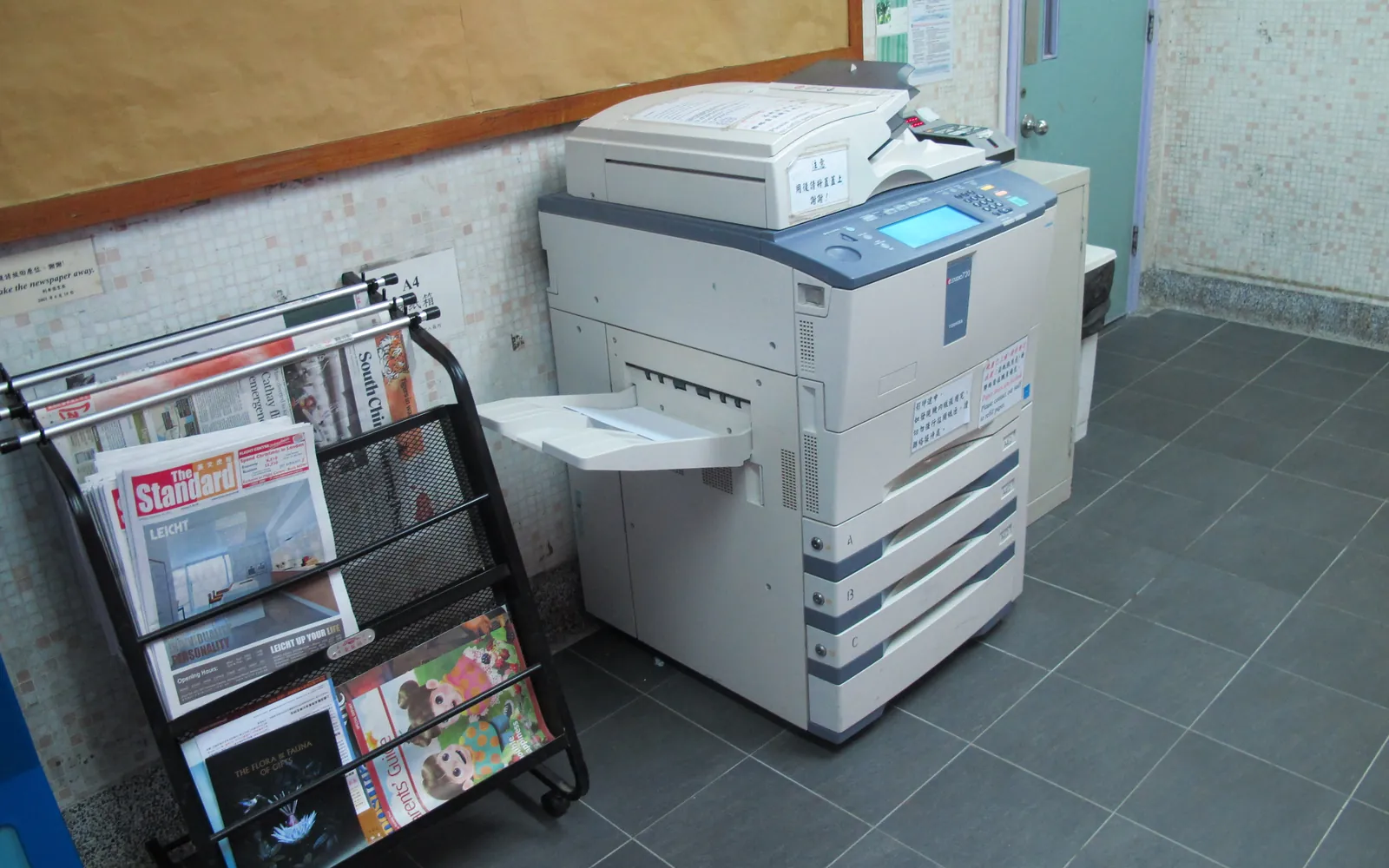
A multifunction printer for office use is usually the busiest device in the building. It prints, copies, scans contracts, digitises receipts and sometimes still sends faxes. Two MFPs with the same print speed can feel completely different in daily use, because the scanner, document feeder and software do most of the work that people notice. This guide covers the features worth paying for and the ones you can skip. Once it is installed, our office printer maintenance checklist keeps the scanner and feeder in good shape.
Start with the document feeder
The automatic document feeder (ADF) decides how quickly people can scan or copy a stack of pages.
- Simplex ADF: scans one side only. Fine if you rarely scan two-sided originals.
- Reversing duplex ADF (RADF): scans one side, flips the sheet, scans the other. Works, but slower and more mechanical movement.
- Single-pass duplex (DADF): two sensors read both sides at once. Fastest and gentlest on paper, and worth it if anyone scans contracts or invoices daily.
Check the feeder capacity in sheets and the scan speed in images per minute (ipm). For a busy front desk or accounts team, the scanner speed often matters more than print speed.
Scanning destinations and workflows
Modern MFPs can send scans straight to where they are needed:
- Scan to email: should support authenticated SMTP and TLS, not an open relay.
- Scan to network folder: use current SMB versions with a dedicated account, not an administrator login.
- Scan to cloud or document management: check which services are supported natively or through an app.
- Searchable PDF (OCR): saves time later when you need to find a document.
Set up a few one-touch shortcuts for common jobs, such as “Invoices to Accounts folder”. Staff will use them far more than menus.
Print features that matter
- Automatic duplex printing. ENERGY STAR criteria require automatic duplexing on many printer and MFP categories, and duplex by default can cut paper use substantially.
- Paper capacity and trays. A second tray lets you keep letterhead, A5 or labels loaded. Check maximum paper weight for the bypass tray.
- Print speed and first page out. For small offices, the time to the first page often matters more than pages per minute.
- Recommended monthly volume. Size the device using our guide to printer duty cycle and monthly volume.
Whether the print engine should be laser or inkjet is covered in laser vs inkjet office printer.
User management and accounting
As soon as more than a handful of people share a device, user management pays off:
- User codes or PINs to track pages by person or department.
- Card readers for badge login on larger devices.
- Quotas or colour restrictions for certain users.
- Secure or pull printing, where the job waits until the user authenticates at the device. See our secure print release guide.
These features also make it easier to enforce an office print policy.
Security features to look for
An MFP is a networked computer with stored data. On your shortlist, check for:
- Signed firmware and a way to update it centrally.
- Storage encryption and a data overwrite or secure erase function.
- Support for TLS-encrypted printing (IPPS) and scanning.
- Role-based admin accounts and audit logs.
Before returning a leased or old MFP, sanitise any internal storage. NIST SP 800-88 describes clear, purge and destroy options for media. Our network printer security checklist covers setup.
Fax: keep or skip?
Fax is still required in some sectors. If you need it, look for fax-to-email or email-to-fax so documents do not sit in the output tray. If you do not, choose a model without a fax board or leave it disconnected.
Size, noise and placement
Desktop MFPs suit teams of a few people. Floor-standing A3 MFPs suit larger shared areas and add finishing options like stapling. Place shared devices away from desks: printing produces noise and some heat. Leave room to open every door and tray for service.
Running costs
MFPs have the same consumables as printers, plus scanner parts such as feeder rollers that wear with use. Ask what the replaceable parts are and their rated life. Then calculate your cost per page and total cost of ownership before buying or signing a lease.
Setting up scanning and storage safely
Two MFP features cause most of the post-installation work. Scan to email depends on your mail provider’s current rules for devices, and those rules change; our scan to email setup guide covers the options for Microsoft 365, Google Workspace and your own mail server. Internal storage holds job images and credentials, so enable encryption and overwrite at installation and plan how it will be wiped when the device leaves, as described in copier hard drive data security. If you are choosing between sizes, see A3 vs A4 office printer.
When the MFP is not the whole answer
An MFP covers most office printing, copying and scanning, but two functions are worth checking separately before you pay for a larger model.
Heavy scanning. If someone scans batches of invoices, post or client files every day, a dedicated desktop scanner at their desk can be faster and more reliable than queuing at the shared MFP, and it may cost less than upgrading to a model with a production-grade feeder. Our guide to the document scanner vs multifunction printer choice sets out how to compare them.
Fax. A fax module needs a phone line that supports fax reliably, and analogue lines are being retired in many countries. Before paying for the module, count how many faxes you send and receive, and compare it with an online fax service that works through email; see online fax vs fax machine.
If neither applies, a well-configured MFP is the simplest set-up: one device, one supplier and one place to apply security settings.
Quick MFP checklist
- Duplex ADF type and capacity suit your scanning volume.
- Scan to email and folder work with authentication and encryption.
- Duplex printing on by default.
- Trays match the papers you use weekly.
- User codes or card login if more than a few users share it.
- Firmware updates, storage encryption and secure erase supported.
Frequently asked questions
What is a multifunction printer?
A multifunction printer (MFP), also called an all-in-one, combines a printer with a scanner and copier in one device. Many office models also send faxes and scan directly to email, network folders or cloud storage.
What is single-pass duplex scanning?
A single-pass duplex feeder has two scan sensors and reads both sides of a sheet at once. A reversing feeder flips the page and scans the second side separately, which is slower and handles more paper movement.
Do small offices still need fax?
Some sectors still exchange documents by fax. If you do not, choose a model without it or leave the fax line unconnected; it is one less feature to secure and maintain.
Is an office MFP a security risk?
It can be. MFPs store scans and print jobs, and some have hard drives. Change the admin password, update firmware, use encrypted scan protocols and wipe stored data before the device leaves your office.
Should I buy a separate document scanner as well as an MFP?
Consider it if one person or team scans batches every day, scans mixed paper such as receipts and ID cards, or needs double-feed detection. For occasional scanning of standard paper, a business MFP is usually enough.
Sources
Printer.business Editorial Team
Editorial team
The Printer.business editorial team writes independent guides on choosing, costing and managing office printers, using primary sources such as ISO/IEC standards, ENERGY STAR, NIST and the UK NCSC.