Print management
Scan to Email Setup on an Office Printer: Step-by-Step
Written by Printer.business Editorial Team · Updated
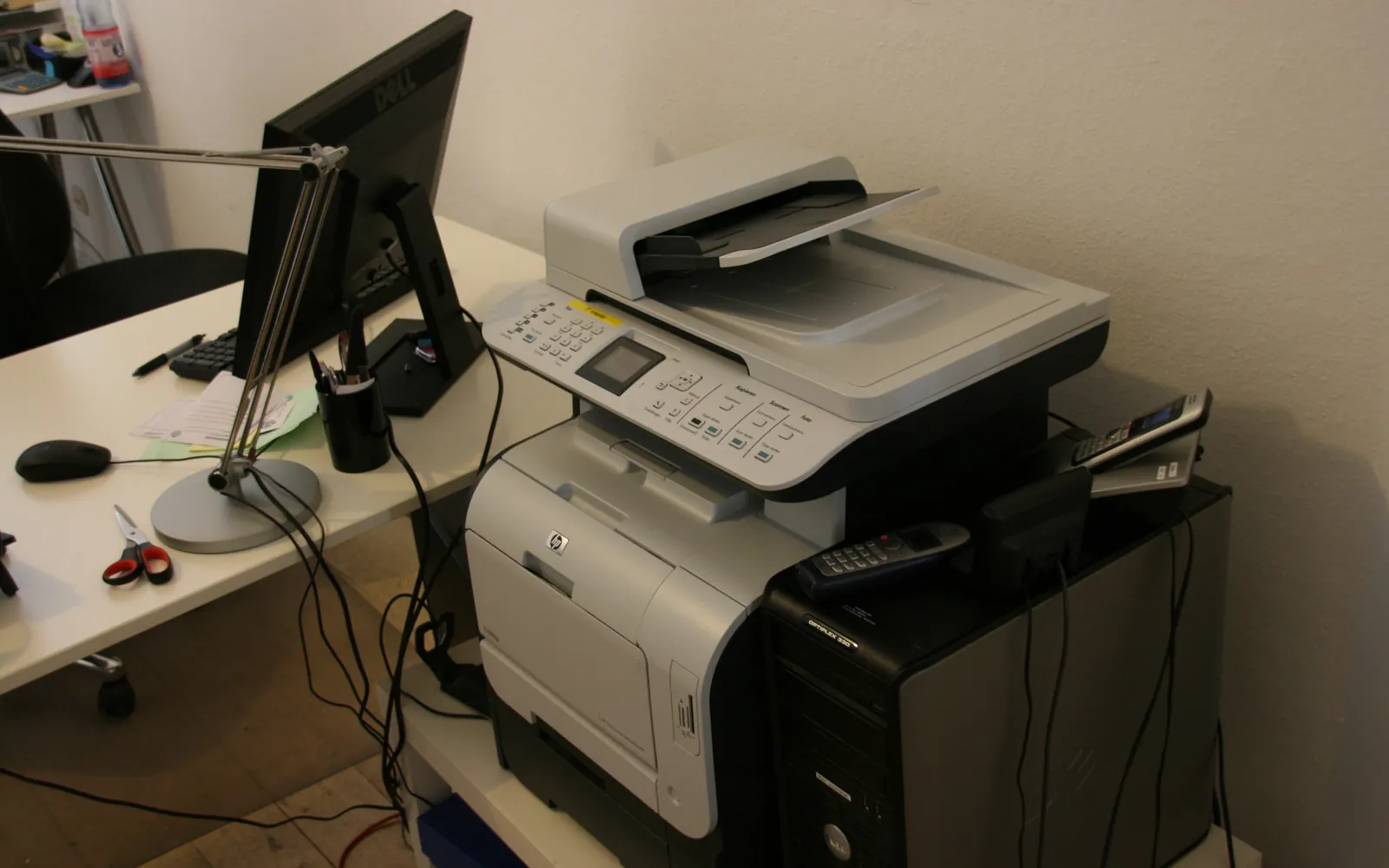
Scan to email setup is one of the most useful things you can do with an office multifunction printer, and one of the most common sources of support calls. The MFP itself cannot deliver email. It creates a message with the scan attached and hands it to a mail server using SMTP. Getting that handover right, and keeping it working when your email provider tightens security, is what this guide covers.
We describe the general method. Menu names differ between manufacturers, so use your device’s administrator guide alongside these steps.
How scan to email works
- A user scans a document and picks a recipient from the address book or types an address.
- The MFP connects to an SMTP server (your email provider or your own mail server).
- The server accepts the message if the device is authenticated or trusted, and delivers it.
Most problems are in step 3: the server refuses the connection because the password changed, the authentication method is no longer allowed, the device uses an old TLS version, or the network blocks the port.
Choose a sending method
Microsoft 365
Microsoft documents several ways for devices to send email through Microsoft 365:
- Client SMTP submission (SMTP AUTH): the device signs in to a licensed mailbox and sends through smtp.office365.com on port 587 (recommended) or 25, with TLS 1.2 or 1.3. It can send to internal and external recipients.
- SMTP relay: the device sends to your domain’s MX endpoint on port 25, and an inbound connector trusts it by TLS certificate or a static public IP address. No mailbox licence is needed and the sender can be any address in your domain.
- Direct Send: the device sends to your MX endpoint without authentication, but only to recipients inside your organisation.
- High Volume Email: a Microsoft 365 option for sending to internal recipients.
Microsoft has announced that SMTP AUTH using Basic authentication (a username and password) is being retired in Exchange Online, and it is not compatible with Microsoft Entra security defaults. Check Microsoft’s current timeline, and if your device only supports a username and password, plan to move to a relay connector, an OAuth-capable firmware, or another method Microsoft recommends.
Google Workspace
Google’s admin help describes options for printers and scanners, including its SMTP relay service and sending through Gmail’s SMTP server. Each has its own authentication and port requirements, so follow Google’s current page for the settings.
Your own mail server
If you run an on-premises mail server, relaying through it is often simplest, because you control the rules. Restrict relay to the printer’s IP addresses; never allow open relay.
Step-by-step setup
- Pick the method from the options above that your MFP supports.
- Create a dedicated sender, such as scanner@yourdomain. Do not use a member of staff’s account.
- Update the MFP firmware so it supports current TLS versions and any modern authentication option.
- Open the device’s web admin page from a computer on the same network and find the SMTP or email settings.
- Enter the server, port and TLS settings from your provider’s documentation, and the credentials or relay details.
- Set the From address and subject template so recipients can recognise scans.
- Set a sensible attachment size limit and file format (PDF is usually best).
- If you use relay or Direct Send, update SPF so your domain authorises the sending IP. The NCSC’s email security guidance explains SPF, DKIM and DMARC.
- Test to an internal and an external address. Check junk folders.
- Document the method, server, port, account and any certificate expiry dates.
Security points
Scan to email moves documents out of the building, so treat it as part of network printer security:
- Protect the admin page with a strong unique password so nobody can change the SMTP server or harvest the stored credentials.
- Limit external recipients if staff only need to scan to themselves. Many MFPs can restrict scans to the logged-in user’s own address.
- Require sign-in at the device for scanning, so scans are traceable. The same login can drive secure print release.
- Review address books periodically and remove old entries.
- Wipe stored credentials before the device leaves the office. See copier hard drive data security.
For regulated data such as health records, check what your rules require for sending documents by email. Our HIPAA compliant printing guide covers the US healthcare case.
Scan to folder and cloud as alternatives
Scan to email is easy, but large scans can hit mailbox limits and sensitive documents end up in many inboxes. Scanning to a network folder over current SMB versions, or to a cloud storage connector, keeps files in one controlled place. Many offices offer both: email for quick sends, folder or cloud for filing. Our multifunction printer guide lists the scanning workflows to check when buying. For the folder option step by step, including SMB versions and signing on Windows 11, see our scan to folder setup guide.
Troubleshooting checklist
- Can the MFP reach the internet and resolve DNS names?
- Is the port (587 or 25) open on your firewall and not blocked by your ISP?
- Has the sending account’s password changed, expired, or been blocked by MFA or security defaults?
- Does the device support TLS 1.2 or later? If it only offers older TLS or port 465, a firmware update or a different method is needed.
- For IP-based relay, has your public IP address changed?
- Does the device’s SMTP log or test result show an error code? Search your provider’s documentation for that code.
Data protection and going paperless
Scan to email moves documents quickly, which also means mistakes move quickly. If a scan with personal data reaches the wrong recipient, treat it as a possible personal data breach and follow your reporting process; our guide to GDPR and office printers explains the steps and the settings that reduce the risk, such as limiting scans to the sender’s own address.
Once scanning is reliable, it becomes the bridge between paper that arrives and digital records you keep. Our paperless office guide shows how to use scanning to stop printing and filing paper copies, and what record retention rules to check first.
Summary
Choose a sending method your provider supports long-term, use a dedicated sender, keep firmware current and protect the device’s admin page. Write the settings down so the next change of password or provider policy is a ten-minute fix rather than a lost day.
Frequently asked questions
Why did scan to email stop working?
Common causes are a changed or expired password on the sending account, multi-factor authentication or security defaults blocking basic SMTP authentication, a mail provider retiring basic authentication, outdated TLS on the device, a changed public IP address for an IP-based relay, or port 25 or 587 being blocked by the network.
What SMTP server do I use for scan to email with Microsoft 365?
For authenticated client submission Microsoft documents smtp.office365.com on port 587 with TLS 1.2 or 1.3. For SMTP relay or Direct Send, you use your domain's MX endpoint, which looks like yourdomain-com.mail.protection.outlook.com, on port 25. Check Microsoft's current guidance before choosing.
Is scan to folder better than scan to email?
It depends. Scan to a network folder or cloud storage avoids mail size limits and keeps sensitive scans out of mailboxes, but needs file share or cloud connector setup. Scan to email is easy for users and works for sending to external recipients.
Should I use my own email account on the printer?
No. Use a dedicated sender address or a relay method so a person's password is not stored on the device and scans do not stop when that person leaves or changes their password.
Sources
Printer.business Editorial Team
Editorial team
The Printer.business editorial team writes independent guides on choosing, costing and managing office printers, using primary sources such as ISO/IEC standards, ENERGY STAR, NIST and the UK NCSC.