Print management
Copier Hard Drive Data Security: Wipe Before You Return It
Written by Printer.business Editorial Team · Updated
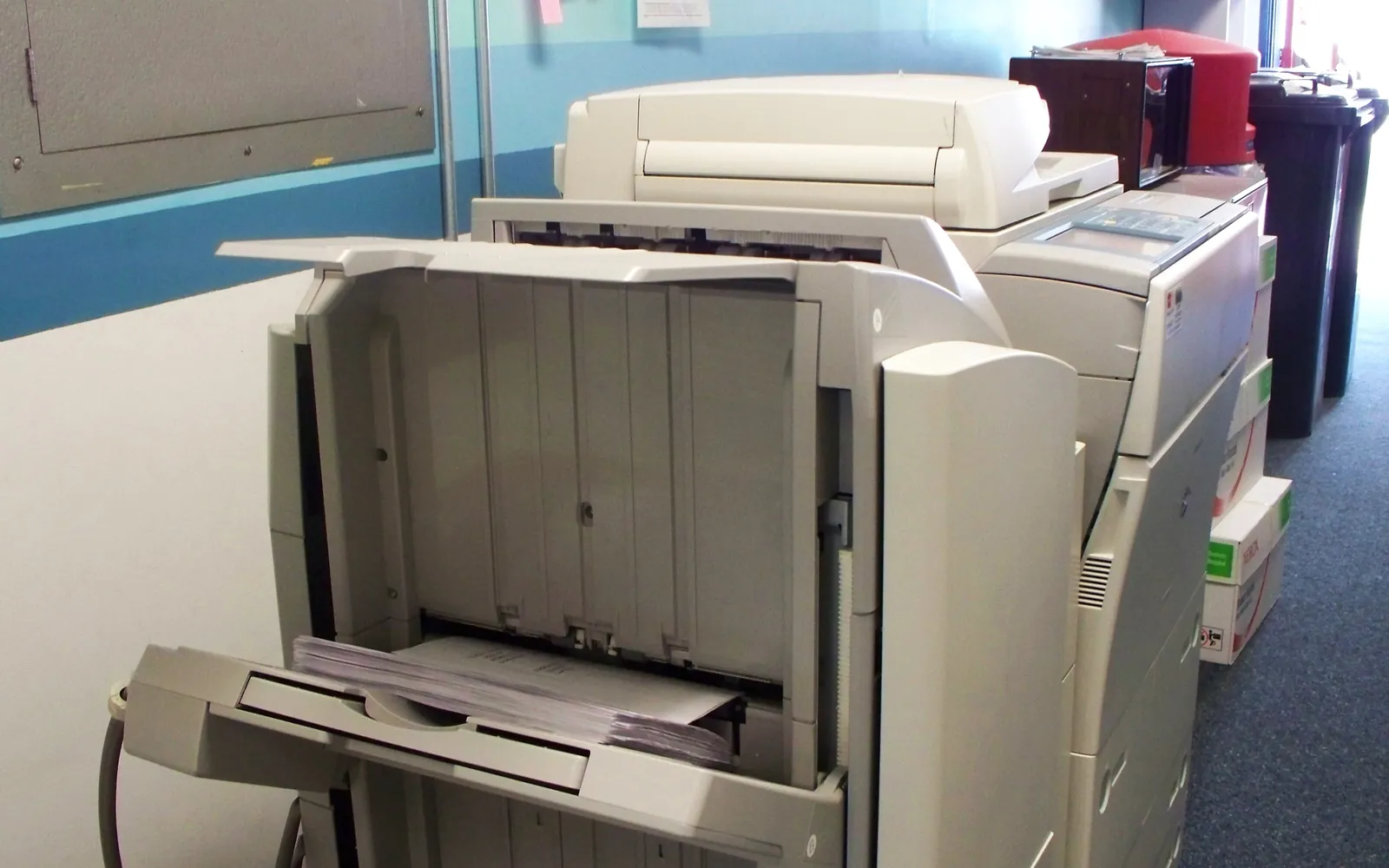
Copier hard drive data security is one of the easiest risks to miss in a small office. A modern copier or multifunction printer (MFP) is a networked computer with storage. It can keep images of what you copied, scanned, faxed and printed, along with address books and the passwords it uses to send scans. When the machine goes back to a leasing company, to a repair shop or to a recycler, that data can go with it unless you deal with it first.
What a copier stores
Depending on the model and settings, internal storage may hold:
- Job images of copies, scans, prints and faxes, sometimes until they are overwritten.
- Stored documents in mailboxes or document boxes that users have saved on the device.
- Address books with names, email addresses and fax numbers.
- Credentials for scan to email, scan to folder and cloud connectors.
- User codes, PINs and accounts for secure release and usage tracking.
- Logs of who printed or scanned what and when.
The US Federal Trade Commission’s guide on digital copier data security makes the same point: plan to treat a copier like any other computer that stores sensitive information, from the moment you acquire it until it leaves.
Why it matters
In 2013 the US Department of Health and Human Services announced a settlement with Affinity Health Plan after copiers it had leased and returned were found, through a television investigation, to contain health records on their hard drives. HHS also found the organisation had not assessed the risk to data on those drives. The same kind of exposure applies to client files, payroll, contracts and ID documents in any business. Under UK GDPR and similar laws, you are expected to keep personal data secure, and the ICO’s data security guidance covers disposal of equipment.
While the copier is in use
Most of the protection comes from settings you can enable on day one:
- Ask before you buy or lease whether the model has a hard drive or SSD, and whether it supports storage encryption and automatic overwrite of completed jobs.
- Enable encryption so a drive removed from the machine cannot be read without the device’s key.
- Enable overwrite or immediate deletion of job data after each job, if the device supports it.
- Limit document storage on the device; prefer scanning to controlled folders.
- Protect the admin password, so nobody can switch these features off.
- Keep firmware updated as part of your wider network printer security routine.
Before the copier leaves
Whether the device is being returned at the end of a lease, replaced under a managed print contract, sent for repair or sold, follow a fixed routine:
- Delete user data: stored jobs, document boxes, address books, user accounts.
- Remove credentials: scan-to-email accounts, folder shares, cloud connectors. Change the passwords of those accounts afterwards, in case anything was missed.
- Run the device’s secure erase or initialisation function, following the manufacturer’s administrator guide.
- Decide whether to remove and destroy the drive. For high-risk data, ask the dealer to remove the drive and destroy it or give it to you. Expect a charge and agree it in advance.
- Get a record: model, serial number, date, method used, and who did it. Ask for a certificate of sanitisation where a dealer or recycler handles it.
- File the record with your asset register.
NIST SP 800-88 describes three levels of sanitisation: clear, purge and destroy. A device’s built-in erase is usually a clear or purge step; physical destruction is the strongest option. Choose based on how sensitive the stored data was.
Do not pull the drive yourself
It is tempting to unscrew the drive and keep it. The FTC guide advises against doing this without a technician: some drives hold firmware the machine needs to operate, some devices have more than one storage component, and drives can be hard to find. With a leased device, removing parts may also breach the contract.
Put it in the contract
The best time to solve this is before you sign. Ask for clauses that say:
- Which storage the device contains and whether it is encrypted.
- Who performs data sanitisation at the end of the term or on swap-out, and by what method.
- Whether drive removal or destruction is available, and on what terms.
- That you receive written confirmation for each device.
If you are writing a request for quotes, put this in the requirements alongside price and service. Our multifunction printer guide and A3 vs A4 office printer guide include it in the buying checklist.
Repairs and swap-outs count too
Data leaves the office in more ways than a lease return. A technician may take a faulty drive away and fit a new one, a dealer may swap the whole device during a contract, or a machine may go back to a workshop for repair. Treat each of these like a disposal: ask what happens to the old storage, get it back or get confirmation of destruction, and update your asset register. If you use a managed print service, ask for their standard procedure in writing before the first swap-out, not after.
Healthcare, legal and finance offices
If you handle health, legal or financial records, check the specific rules that apply to you. In US healthcare, the HIPAA Security Rule includes device and media controls for disposal and reuse; see our HIPAA compliant printing guide.
Data protection rules and lease returns
If your office handles personal data of people in the UK or EU, copier storage falls within your GDPR security obligations, and a misdirected scan or a returned device with readable data can be a personal data breach. Our guide to GDPR and office printers sets out the measures and the breach steps.
Timing matters too. The wipe is easy to forget in the rush at the end of a lease, so put it on the same checklist as the notice date and the final meter reading. The end of copier lease guide gives the full sequence, from finding the contracts to getting written confirmation of collection. If you are buying a used machine rather than returning one, ask how the previous owner’s data was removed, as described in our refurbished copier guide.
Checklist
- Storage type and encryption confirmed at purchase or lease.
- Encryption and overwrite enabled.
- Admin password changed and stored securely.
- End-of-life wiping procedure written down.
- Wiping responsibility and method in the contract.
- Sanitisation record kept for every device that leaves.
Frequently asked questions
Do copiers have hard drives?
Many copier-class MFPs do, either a hard disk drive or a solid-state drive, and some smaller devices use flash memory. They store job images, address books, settings and logs. Check the specification or ask the dealer whether the model has internal storage and what it keeps.
How do I wipe a copier hard drive?
Most business MFPs have an administrator function to securely erase or initialise storage, sometimes called data overwrite, secure erase or hard disk initialisation. Run it after deleting address books and stored jobs, then confirm with the dealer or manufacturer guide that it covers all storage. For highly sensitive data, have the drive removed and destroyed by a technician.
Can I remove the copier hard drive myself?
It is usually better not to. The FTC's copier guide notes that drives may contain firmware the machine needs, may be hard to locate, and that some devices have more than one. Removing a drive from a leased machine can also breach the lease. Ask the leasing company or a qualified technician.
Is the leasing company responsible for wiping the data?
Do not assume so. You remain responsible for the personal data you processed. Agree in writing who wipes the device, by what method, and that you receive a certificate or record of sanitisation.
What happens if we do not wipe a copier?
Whoever receives the machine next may be able to recover documents and credentials. In the US, HHS reached a settlement with Affinity Health Plan in 2013 after copiers returned to a leasing company were found to contain health records.
Sources
Printer.business Editorial Team
Editorial team
The Printer.business editorial team writes independent guides on choosing, costing and managing office printers, using primary sources such as ISO/IEC standards, ENERGY STAR, NIST and the UK NCSC.