Buying guides
Document Scanner vs Multifunction Printer for the Office
Written by Printer.business Editorial Team · Updated
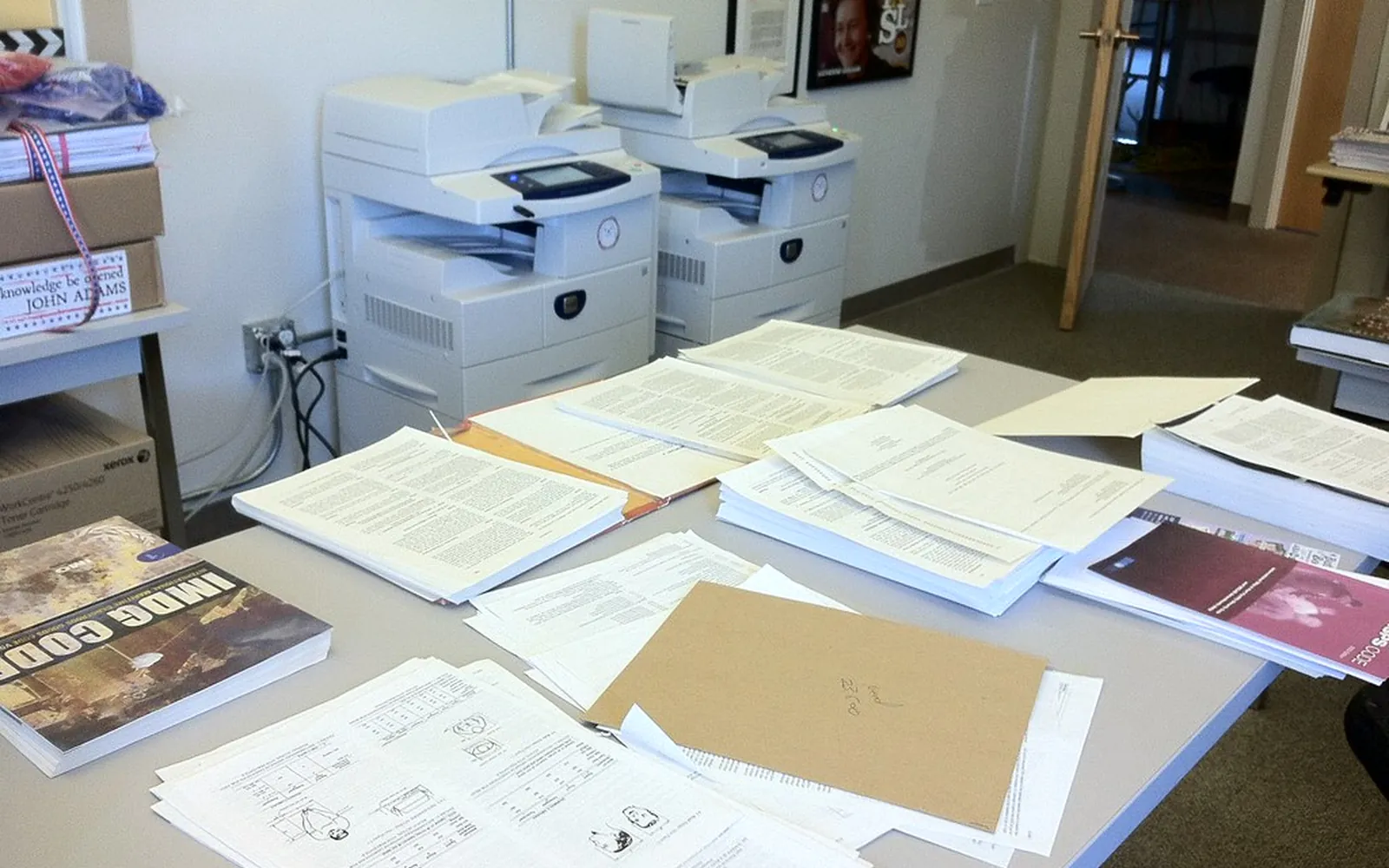
The question of a document scanner vs multifunction printer comes up as soon as an office starts scanning seriously: going paperless, digitising files, or scanning invoices every day. A business multifunction printer (MFP) already scans, so why buy anything else? Often you do not need to. But the scanner in an MFP is built around a printer, while a dedicated document scanner is built around the paper path. This guide explains where the difference shows, how to compare the two, and how to decide for your office.
For background on choosing the MFP itself, see our guide to the multifunction printer for an office.
What each device is designed for
A multifunction printer combines printing, copying, scanning and sometimes faxing. Its scanner usually has a flatbed glass plus an automatic document feeder (ADF) on top. On business models the feeder can be fast and capable, and the device already sits on the network with scan-to-email and scan-to-folder built in.
A dedicated document scanner does one job. Desktop sheet-fed models sit next to a PC or connect to the network; larger production scanners handle thousands of pages a day. Their design priorities are reliable feeding of mixed paper, image processing, and software that turns paper into named, searchable files with as few clicks as possible.
Where the multifunction printer is enough
An MFP’s scanner is usually enough when:
- scanning is occasional, a few documents per person per day;
- the paper is clean, standard office paper of one size;
- scans go to email or a shared folder, and nobody needs complex naming or indexing;
- several people share one scanning point and you do not want another device to manage.
Set it up properly and it covers a lot of ground. Our step-by-step guides to scan to email and scan to folder cover the configuration most offices need.
Where a dedicated scanner pays off
A dedicated scanner earns its place when:
- You scan in batches every day, for example incoming post, invoices or signed forms.
- The paper is mixed: thin and thick sheets, receipts, business cards, ID cards, folded or creased pages, documents with sticky notes.
- Missed pages would be serious, as in legal bundles or client files, where double-feed detection matters.
- You are digitising an archive, where throughput and reliability decide how long the project takes.
- The scanning happens at a desk, not at the shared printer, so staff do not queue at the MFP or walk back and forth.
Professional offices often fall into this group; our guides to the printer for a law firm and the printer for an accounting firm explain why scanning quality matters so much there.
What to compare
The document feeder
The feeder is the heart of any scanning device. Compare:
- Single-pass duplex: two sensors scan both sides at once. Some MFP feeders instead flip each page, which is slower and handles more paper twice.
- Feeder capacity and the daily duty cycle the manufacturer states for scanning.
- Double-feed detection: ultrasonic sensors that stop when two sheets go through together, so pages are not silently lost.
- Paper range: minimum and maximum size and thickness, plastic cards, long documents.
Image quality and processing
For ordinary text documents, 300 dpi is a widely used default; higher settings make bigger files and are only worth it for small print, drawings or photos. More important day to day are automatic features: blank page removal, deskew, cropping, colour detection and background clean-up. Dedicated scanners often do this well out of the box; on MFPs it depends on the model and software.
OCR and file formats
Optical character recognition (OCR) turns a page image into searchable text. Check:
- whether the device or its software can save searchable PDF;
- whether it can save PDF/A, the ISO archival format, if your records policy or a court or regulator asks for it;
- OCR language support and where OCR runs: on the device, on a PC, or in a cloud service.
Software and destinations
Scanning is only useful when the file ends up in the right place with a sensible name. Compare one-touch profiles, file naming from barcodes or OCR text, and connectors to your document management, accounting or cloud storage. On PCs, scanners commonly use drivers such as TWAIN; many newer network scanners and MFPs also support driverless scanning standards from the Printer Working Group, which matter for Macs and mixed fleets.
Security
An MFP keeps scanned images in its own storage on many models, and scan destinations can be misused if anyone can type an email address. Restrict destinations, encrypt and wipe storage, and keep firmware current. Our guides on copier hard drive data security and network printer security explain the steps. A desktop scanner connected to one PC reduces some of these risks but moves files onto that PC, so the usual endpoint security applies.
A quick way to decide
- Measure your scanning. For two weeks, note how many pages are scanned, by whom and what kind of paper. An office print audit can collect this alongside print volumes.
- Test the MFP you have. Scan a real day’s batch, including the awkward documents, and check missed pages, skew and file quality.
- Identify the bottleneck. Queues at the MFP, misfeeds, or manual renaming of files are signs a dedicated scanner would help.
- Trial a scanner where scanning happens. Put it at the desk of the person who scans the most, and compare time spent per batch.
Looking after a scanner
Dedicated scanners and MFP feeders both need routine care, and neglected rollers are the most common cause of misfeeds and double feeds. Feed rollers and separation pads wear out with use; manufacturers state replacement intervals in pages and sell them as consumable kits. Glass and sensors collect dust and correction fluid, which shows up as vertical lines on every scan. Build a short cleaning routine into your office printer maintenance checklist, keep a spare roller kit for a scanner that does daily batches, and train the people who scan most to remove staples and smooth folded pages before loading. Those habits matter more for scan quality than small differences in specification.
Using both
Many small offices end up with both: the MFP handles everyday scans for everyone, and one or two desktop scanners handle the daily batches. That combination often costs less than upgrading the MFP to a model with a production-grade feeder, and it keeps heavy scanning away from the shared printer. If you are going paperless, start with the documents you scan most and see our guide to the paperless office.
Summary
In the document scanner vs multifunction printer decision, the MFP is enough for occasional scans of clean office paper, especially when scan-to-email and scan-to-folder are set up well. A dedicated scanner pays off for daily batches, mixed paper, critical documents and archive projects. Compare the feeder first, then OCR, file formats, software and security, and test with your own documents before you buy.
Frequently asked questions
Is a dedicated document scanner better than the scanner in a multifunction printer?
For heavy or mixed scanning, usually yes. Dedicated scanners are designed around the document feeder, with features such as single-pass duplex, ultrasonic double-feed detection and handling for thin, thick or small documents. For occasional scans of standard office paper, a good multifunction printer is often enough.
Can a multifunction printer scan to searchable PDF?
Many business models can, either built in or through an optional licence or the manufacturer's software. Check whether OCR runs on the device, on a PC or in a cloud service, and which languages it supports.
What resolution should I scan office documents at?
For ordinary text documents, 300 dpi is a common default that balances legibility, OCR accuracy and file size. Use higher settings for small print, photos or detailed drawings, and check any filing or archive rules that set a minimum.
Do I need a network scanner or a USB scanner?
A USB scanner suits one person or one desk that does most of the scanning. A network scanner, or a multifunction printer, suits a shared scanning point used by several people, ideally with scan-to-folder or scan-to-email set up for each user.
Sources
Printer.business Editorial Team
Editorial team
The Printer.business editorial team writes independent guides on choosing, costing and managing office printers, using primary sources such as ISO/IEC standards, ENERGY STAR, NIST and the UK NCSC.