Buying guides
When to Replace an Office Printer: Signs and a Decision Test
Written by Printer.business Editorial Team · Updated
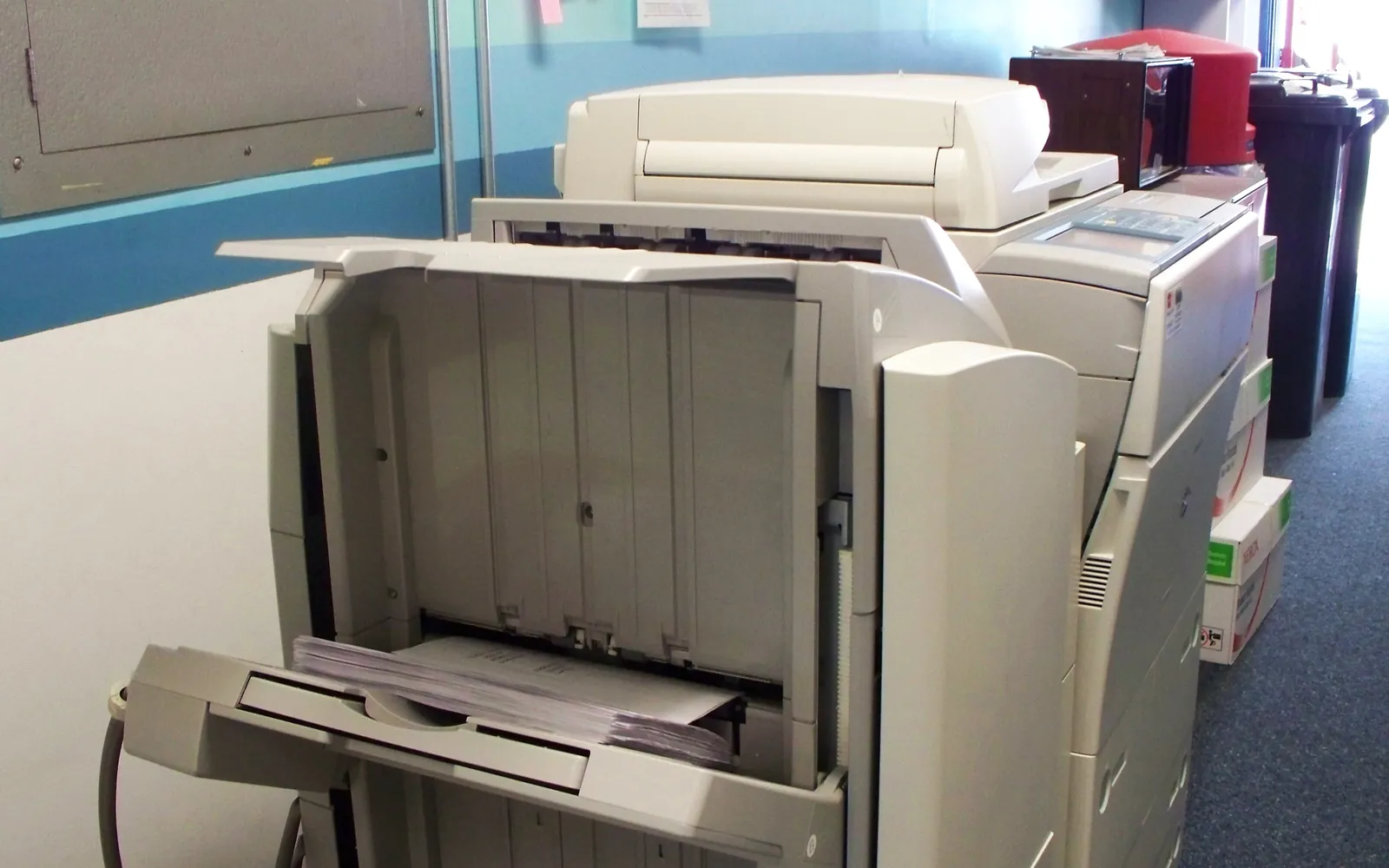
Knowing when to replace an office printer saves money in both directions. Replace too early and you pay for capacity you did not need; hang on too long and you pay for repeated engineer visits, wasted staff time and a device that may no longer be secure. Age alone is a poor guide. This guide lists the signs that matter and a simple test to decide between repair and replacement.
Sign 1: repairs and downtime are climbing
Look at the last twelve months:
- How many engineer visits or repair invoices were there?
- Were major parts replaced, such as the fuser, drum, transfer belt or main board?
- How often was the device out of action, and at what times?
One repair is normal. Repeated failures of different parts usually mean more are coming. Downtime during busy periods, such as month-end or deadlines, costs more than the repair invoice suggests. Count staff time too: if people regularly walk to another floor or queue at another device, that is a cost.
Sign 2: firmware or driver support has ended
This is the strongest single reason to replace a networked printer. Printers run firmware that can have security flaws. If the manufacturer has stopped publishing updates for the model, known flaws will stay unfixed. The NCSC’s guidance on keeping devices up to date applies to printers like any other connected device.
Drivers matter too. Microsoft’s end of servicing plan for third-party printer drivers says that from 15 January 2026 no new third-party printer drivers are published to Windows Update for Windows 11 and Windows Server 2025, that from July 2026 Windows prefers its IPP inbox class driver, and that from July 2027 third-party driver updates are limited to security fixes. A printer that works with the Windows class driver, through standards such as Mopria and IPP, is easier to keep running. Our universal print driver guide explains how to test.
Check the manufacturer’s support pages for your model and note:
- the date of the last firmware release;
- whether current Windows and macOS versions are supported;
- whether the model is listed as end of support or end of service.
If support has ended, read our network printer security checklist for interim measures, and plan a replacement.
Sign 3: your needs have changed
A healthy printer can still be the wrong printer. Compare current use with what it was bought for:
- Volume: has monthly volume fallen well below or risen well above its recommended range? See our duty cycle and monthly volume guide.
- Colour: do you print more or less colour than before?
- Scanning: many offices now scan far more than they print. An old device with a slow document feeder may hold everyone up.
- Paper sizes and finishing: do you need A3, booklets or stapling now, or no longer?
- Hybrid working: fewer people in the office may mean fewer devices. Our guide on how many printers an office needs helps reset the fleet.
Sign 4: running costs are high for what it does
Older devices can cost more per page and use more energy in ready and sleep modes than current models. Compare your actual cost per page with current options using the printer cost per page comparison, and check energy use with the help of office printer energy use and ENERGY STAR data. Small differences per page add up on busy devices.
A repair-or-replace test
Use a two or three year horizon:
- Repair path: cost of the current repair, plus expected repairs and parts over the period (based on recent history), plus supplies at your measured volume, plus energy.
- Replace path: purchase or lease cost over the period, plus service, supplies and energy at the same volume, plus setup.
- Add risk: if the device has lost firmware support or fails at critical times, add a realistic cost for downtime or security exposure to the repair path.
- Compare: replace if the replace path is similar or cheaper, or if the risk factors make the repair path unacceptable.
Our printer total cost of ownership guide gives a fuller template, and refurbished copier for a small business covers a middle path.
Leased devices
If the device is leased, the decision usually falls at the end of the term. Start planning six to twelve months ahead, because notice windows can be short; see end of copier lease. If a leased device is failing mid-term, check what the service agreement promises on response, repair and replacement before paying for anything yourself.
Planning the changeover
When you decide to replace:
- Data: export address books, remove stored credentials, then wipe storage; NIST SP 800-88 describes sanitisation levels. See copier hard drive data security.
- Drivers and queues: update print queues or deployment policies so users get the new device; see deploy printers with Group Policy.
- Scan destinations: recreate scan to email and scan to folder settings, using current authentication methods.
- Meter readings: record final readings on a leased device and check the last invoice.
- Disposal: return leased devices as the lease requires; recycle owned devices through an electronic waste route.
Avoiding a rushed replacement
The worst time to choose a printer is the day the old one fails. Keep a short replacement file for each main device: purchase or lease date, model, current meter reading, known faults and the end-of-support date if the manufacturer publishes one. Review it once a year alongside your office printing budget, so replacements are planned and funded rather than bought in a hurry.
Use the replacement to rethink placement and finishing
Replacing a printer is a good moment to fix problems that have nothing to do with the old device itself. Before ordering a like-for-like model, ask:
- Is it in the right place? If people walk a long way, queue at busy times, or the printer sits next to someone’s desk, a replacement is the time to move it. Our guide to office printer placement covers the checks: walking distance, noise, ventilation, power and network points.
- Is finishing done by hand? If staff spend time stapling, punching or folding, a replacement with a suitable finisher may pay for itself in time saved. If finishing is rare, skip it. See copier finisher options.
- Is paper causing faults? Some printers are replaced because of persistent jams that were really caused by damp or low-quality paper. Test with fresh, well-stored paper before you decide; our office printer paper guide explains what to look for.
- Do staff need a different kind of device? Teams that work away from the office may need portable printers rather than a second office printer.
Writing these answers into your replacement request helps suppliers quote for what you actually need.
Summary
Replace an office printer when repairs and downtime outweigh the cost of a replacement, when firmware or driver support has ended, or when your needs have moved on. Decide with twelve months of data and a two to three year cost comparison, then plan the changeover so data is wiped and users are moved over cleanly.
Frequently asked questions
How long should an office printer last?
There is no fixed lifespan. It depends on the device class, how its monthly volume compares with its recommended volume, and maintenance. Many businesses review devices when a lease ends or when a major part fails, rather than at a set age.
Should I repair or replace an office printer?
Compare the cost of the repair plus expected repairs and supplies over the next two to three years with the cost of a suitable replacement over the same period. Replace if the device has lost firmware support, cannot handle your volume, or keeps failing at busy times.
Is an old printer a security risk?
It can be. A networked printer that no longer receives firmware updates may have known vulnerabilities that will never be fixed. Check whether the maker still publishes updates for the model.
What should I do with the old printer?
Wipe its stored data, remove saved credentials, record final meter readings if it is leased, and return or recycle it through a proper electronic waste route.
Should we replace a printer that jams a lot?
Check the paper first. Try fresh paper from a different box, stored flat and dry, and make sure tray guides are set correctly. If jams continue with good paper and after service, repair costs and downtime may justify replacement.
Sources
Printer.business Editorial Team
Editorial team
The Printer.business editorial team writes independent guides on choosing, costing and managing office printers, using primary sources such as ISO/IEC standards, ENERGY STAR, NIST and the UK NCSC.