Print management
Guest Printing in the Office: Secure Options Explained
Written by Printer.business Editorial Team · Updated
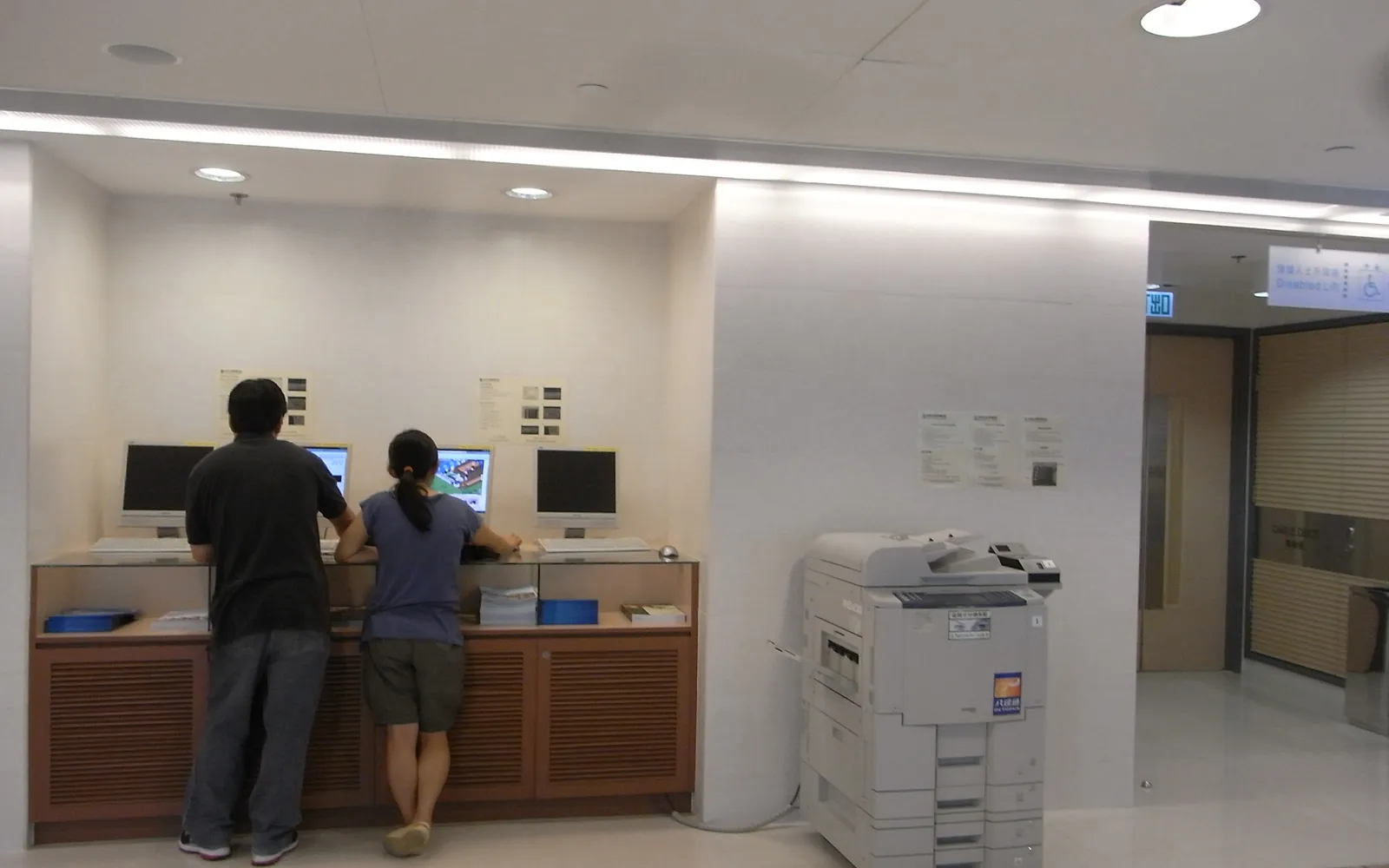
Guest printing sounds simple: a visitor needs to print a boarding pass or a contract, and there is a printer right there. The risk is in how it is done. Handing out the main Wi-Fi password or plugging a guest laptop into the office network gives that device the same reach as your staff. This guide explains safer ways to let visitors and personal phones print, and how to set them up in a small office.
Who counts as a guest?
Plan for each group separately, because their needs differ:
- Visitors and clients printing a document or two.
- Contractors and temporary staff who print regularly for weeks.
- Staff personal phones and tablets (bring your own device), which you may not manage.
- Shared spaces such as meeting rooms used by other tenants.
Some of these groups may be better served by a proper account than a guest route. The rest need a way to print that keeps them off your internal network.
Option 1: a printer on the guest network
If your router or access points provide a separate guest Wi-Fi, you can put a printer on it. Phones and laptops on the guest Wi-Fi then find the printer using driverless standards such as IPP Everywhere, AirPrint or Mopria, without installing software.
Keep it safe:
- Use a separate, simple printer for guests, or make sure staff printers are not reachable from the guest network.
- Block traffic from the guest network to your internal network.
- Change the guest printer’s admin password and do not expose its admin page on the guest side if it can be restricted.
Option 2: email or web upload to print
Many print management services and some printers accept jobs sent to an email address or uploaded on a web page. The guest sends the document, receives a code, and releases the job at the printer. The guest device never joins your network.
Points to check:
- Which file types are accepted and how they are converted.
- Where documents are stored while waiting, and for how long.
- Whether jobs from unknown senders are held until released, so the printer cannot be used to print spam.
Option 3: cloud print management
A cloud print service can accept jobs from guest devices and send them to office printers through a connector, with release at the device. This is often the cleanest option if you already use one for staff. Our cloud print management guide explains how these services work.
Option 4: Wi-Fi Direct
Many printers can create their own wireless link so a phone connects directly to the printer. It keeps guests off your network, but it is another wireless access point to manage. If you use it, change the default passphrase, restrict it to printing, and turn it off when it is not needed.
Comparing the options
| Option | Guest joins your network? | Setup effort | Best for |
|---|---|---|---|
| Printer on guest Wi-Fi | Guest network only | Low to medium | Offices with a separate guest Wi-Fi and a spare printer |
| Email or web upload | No | Low, if your system supports it | Visitors printing one or two documents |
| Cloud print service | No, or guest network only | Medium | Offices already using cloud print for staff |
| Wi-Fi Direct | No, direct link to printer | Low | Occasional use in small offices |
For contractors who stay for weeks, a temporary staff account with an expiry date is often cleaner than any guest route. It gives them the same release and reporting as staff, and access ends automatically.
Setting up a guest route in a small office
- Check what you have. Does your router or access point support a separate guest network with isolation from the main network? Does your printer or print management system support email printing or a guest portal?
- Choose one route and test it from a phone and a laptop that have never connected before.
- Turn on release and set an expiry for unreleased jobs, for example a few hours.
- Write instructions on one card for reception: network name, how to send a job, how to release it.
- Review monthly for the first few months: pages printed, any jobs from unknown senders, and complaints.
Always release at the device
Whatever route you choose, guest jobs should not print straight into an open tray. Use PIN, code or card release so the person collects their own pages and forgotten jobs expire. Our secure print release guide covers the options and settings.
Lock down the printer itself
Guest access increases the number of devices that can reach the printer. Before you enable it:
- Change the admin password from the default.
- Update firmware.
- Disable services you do not use, such as old protocols and file sharing on the printer.
- Turn off features guests should not use, such as scan to email from the guest side.
The network printer security checklist lists the full set, and print server vs direct IP printing explains how queues affect control.
Costs and limits
Guest printing adds pages to your bill. Set sensible limits:
- Mono only by default for guests.
- A page limit per job or per day if your system supports it.
- Duplex default.
Track guest volume separately if you can, so you can see it in your next office print audit.
Write it into your policy
Add a short section to your office print policy:
- which guest route to use and where to find instructions;
- that guests must collect jobs immediately;
- that staff must not share internal Wi-Fi credentials with visitors;
- who to ask for help.
Put a printed card at reception with the guest route instructions.
Guest printing in client-facing firms
Offices that regularly host clients, such as law and accounting practices, need a guest route that never exposes client files. Visitors should not be able to see the internal queue, and anything they print should be released at the device by them or by reception. Keep the guest route on its own network segment and turn it off when not in use. The role guides for a printer for a law firm and a printer for an accounting firm cover the wider setup. If guest printing is used heavily, track it as its own line so you can see its share in your office printing budget.
Summary
The safest guest printing keeps visitors off your internal network and makes them release their own jobs. Use a guest network printer, an email or web upload route, or a cloud print service; lock down the printer; and add the rules to your print policy.
Frequently asked questions
How can visitors print in the office securely?
Give them a route that does not require joining your internal network: a printer or print queue on the guest Wi-Fi, an email or web upload address, or a cloud print service. Require a release code or card at the device so jobs are collected by the right person.
Can phones print to an office printer without installing an app?
Many current printers support driverless printing standards such as IPP Everywhere, AirPrint and Mopria, so phones and tablets on the same network can print without a vendor app. Check what your model supports.
Should the office printer be on the guest Wi-Fi?
Usually not the same device interface used by staff. Either use a separate printer on the guest network or a print management service that accepts guest jobs and releases them on the office printer, so guests never reach its admin page.
Is Wi-Fi Direct safe for guest printing?
It avoids your network but creates a separate wireless link to the printer. If you use it, change the default passphrase, limit it to printing, and turn it off when not needed.
Sources
Printer.business Editorial Team
Editorial team
The Printer.business editorial team writes independent guides on choosing, costing and managing office printers, using primary sources such as ISO/IEC standards, ENERGY STAR, NIST and the UK NCSC.