Print management
Scan to Folder Setup: SMB Scanning for Office MFPs
Written by Printer.business Editorial Team · Updated
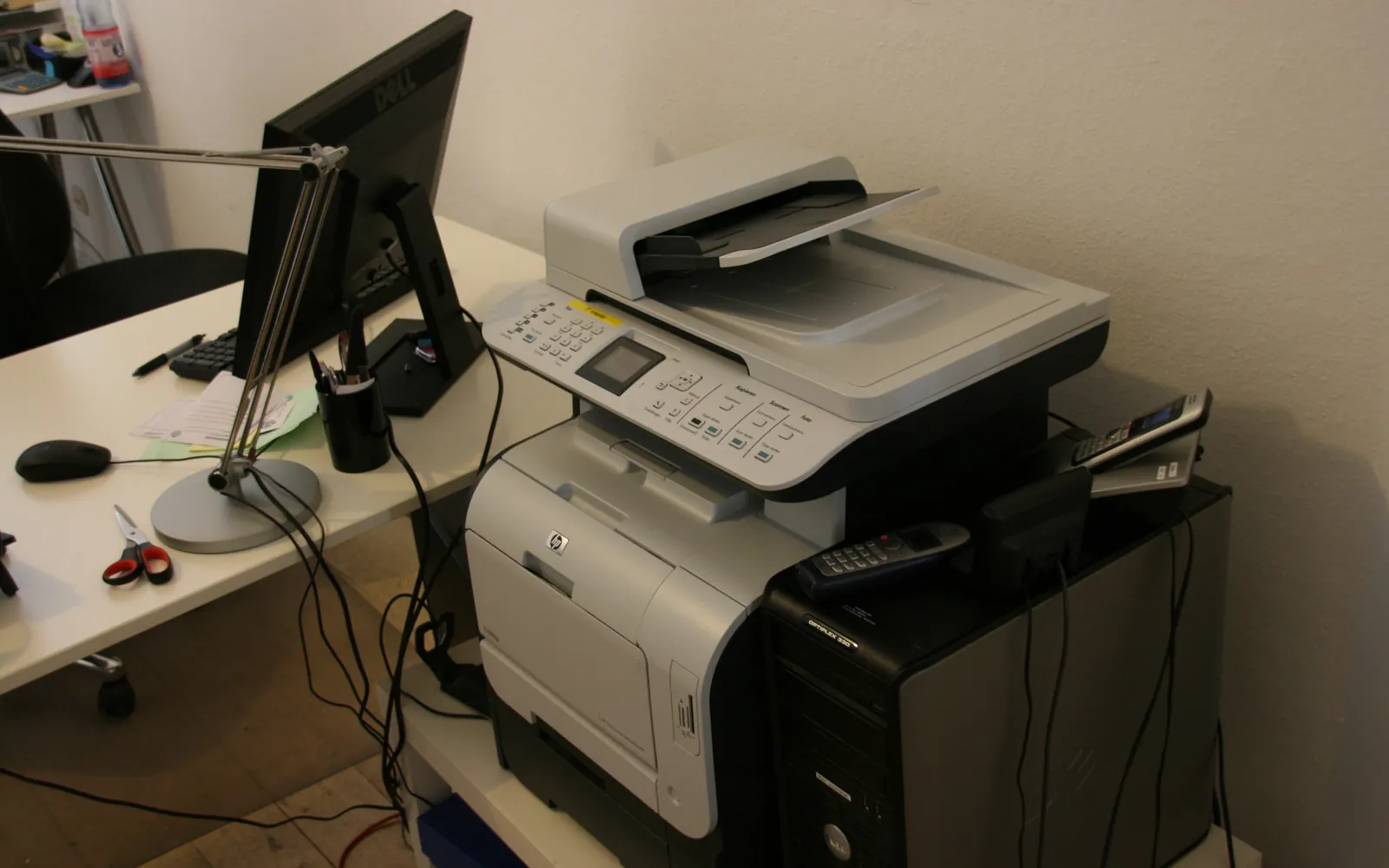
A clean scan to folder setup lets staff press one button on the office multifunction printer and find the file waiting in a shared folder a few seconds later. It avoids the mailbox size limits of scan to email and keeps scanned documents in one place you can back up and control. It is also one of the settings most likely to break after a password change or a Windows update. This guide covers how scan to folder works, how to set it up so it keeps working, and how to troubleshoot it.
Menu names differ between manufacturers, so keep your device’s administrator guide open alongside these steps. If you mainly want scans delivered by email, see our scan to email setup guide.
How scan to folder works
When someone scans to a folder, the MFP acts as a network client. It connects to a shared folder using SMB (Server Message Block), the protocol Windows uses for file sharing, logs in with the account stored in its settings and writes the file. Three things therefore have to be right:
- The path to the share, such as
\\fileserver\Scans. - The account the MFP uses to log in, with permission to write there.
- The SMB version and security features that both the MFP and the server support.
Some MFPs also offer FTP, SFTP or vendor cloud connectors as alternative destinations. They follow the same logic: a destination, credentials and a protocol both sides support.
Where to put the scan folder
Scan to a file server or a NAS rather than to a desktop or laptop. A personal computer sleeps, changes networks, gets its firewall reset and is replaced every few years, and each of those breaks scanning. A central share also makes backup and permissions easier.
A simple structure works for most small offices:
- One shared folder, for example
Scans, with subfolders per team or per person if needed. - A retention habit: scans are moved to their proper location and the scan folder is cleaned regularly. Our office print policy template can include this rule.
Create a dedicated scanning account
Give the MFP its own account instead of an administrator login or a person’s credentials.
- Least privilege. Write access to the scan folder only; no administrator rights and no access to other shares.
- Password expiry. If your policy forces password changes, the MFP stops scanning on the day the password expires. Either exempt this account with a long, strong password, or put the renewal in a calendar along with the steps to update the device.
- Name format. In a domain, enter the account as
DOMAIN\scanuserorscanuser@domainaccording to what your MFP’s admin guide asks for. On a NAS, use the local account name.
Store the password only on the device and in your password manager. Restrict who can view or edit destinations on the MFP’s admin page, as covered in our network printer security guide.
SMB versions and signing on current Windows
Most scan to folder failures on modern networks are about protocol support rather than settings.
- SMBv1 is gone. Microsoft no longer installs SMBv1 by default in current Windows and Windows Server releases. An MFP that only speaks SMBv1 cannot write to those shares. The fix is a firmware update that adds SMB2 or SMB3, not turning SMBv1 back on.
- SMB signing. According to Microsoft, Windows 11 version 24H2 Pro, Enterprise and Education require SMB signing for inbound and outbound connections. A device that does not sign its SMB traffic can be refused by a share on such a PC. Many NAS devices and servers can also require signing. Check that the MFP firmware supports it.
- Firmware first. Before changing any security setting on the server, update the MFP. Manufacturers regularly add newer SMB support, and keeping firmware current is basic hygiene for any networked office device.
If an older device cannot be updated, consider whether it is time to replace it; our total cost of ownership guide helps weigh that decision.
Step-by-step setup
- Create and share the folder on the server or NAS. Give the scanning account write (modify) permission on both the share and the folder itself; both layers must allow it.
- Note the path. Use the server’s name (
\\fileserver\Scans) if your DNS is reliable, or give the server a fixed IP address and use that. A server whose address changes breaks the path. - Update the MFP firmware from the manufacturer’s support site.
- Add the destination in the MFP’s web admin page: protocol SMB, the path, the account name and password. Some devices ask for the host and the share path in separate fields.
- Test with a one-page scan. Check that the file arrives with a sensible name and format, such as searchable PDF.
- Create shortcuts or address book entries so staff do not type paths at the panel.
- Document the path, account, firmware version and password renewal date.
Troubleshooting checklist
Work through these in order; each one rules out a layer.
- Path: can a PC on the same network open
\\server\sharewith the scanning account? If not, the problem is the share, not the MFP. - Credentials: has the password expired or changed? Is the domain or account name in the format the device expects?
- Permissions: does the account have write access on both the share and the folder?
- Name resolution: if the path uses a server name, try the IP address as a test.
- SMB version and signing: does the MFP’s admin guide or firmware release notes show SMB2/3 and signing support? Did the problem start after a Windows update or a move to a new PC or NAS?
- Firewall: SMB uses TCP port 445; a firewall on the server or between network segments can block it.
- Device logs: many MFPs show a specific error code in their job log; the manual lists what each one means.
Scan to folder, email or cloud?
Many offices use more than one destination. Folder scanning suits filing and large documents; email suits quick one-off sends; cloud connectors suit teams that already work in a cloud document system. When you choose a new device, check which destinations it supports and how they authenticate; our multifunction printer guide lists the scanning features to compare.
Folder structure for a paperless office
Scan to folder works best when the destination is organised. Agree one folder per document type, a naming rule that sorts by date, and access rights that match who should see the documents. Our paperless office guide explains how to plan this and which retention rules to check before you shred the paper originals.
If the folders hold personal data, apply the same protection you would to paper files. Limit access, set retention, and treat a scan saved to the wrong shared folder as a possible breach. See GDPR and office printers for the measures that apply.
Summary
Put the share on a server or NAS, give the MFP its own low-privilege account with a managed password, keep the MFP firmware current so it supports SMB2/3 and signing, and test the path from a PC before blaming the device. Set up that way, scan to folder keeps working through password policies and Windows updates.
Frequently asked questions
What is scan to folder?
It is an MFP feature that saves scanned documents straight into a shared folder on your network. The device connects to the folder over SMB, the same protocol Windows uses for file sharing, and logs in with an account you configure on the device.
Why did scan to folder stop working after a Windows update?
Common reasons are an older MFP that only speaks SMBv1, which current Windows versions do not install, or a device that does not support SMB signing, which Windows 11 24H2 Pro, Enterprise and Education require by default. An expired password on the scanning account causes the same symptom.
Should I turn SMBv1 back on for an old scanner?
Avoid it. SMBv1 is outdated and Microsoft removed it from default installs for security reasons. Update the MFP firmware, use a NAS or server that the device supports with a newer SMB version, or switch that device to scan to email or a cloud connector.
Which account should the MFP use?
Create a dedicated account used only for scanning, with write access to the scan folder and nothing else. Do not use an administrator account or a person's own login.
Is scan to folder more secure than scan to email?
It can be, because files stay in one controlled location instead of being copied to mailboxes. It still needs sensible folder permissions, a protected account and up-to-date firmware on the MFP.
Sources
Printer.business Editorial Team
Editorial team
The Printer.business editorial team writes independent guides on choosing, costing and managing office printers, using primary sources such as ISO/IEC standards, ENERGY STAR, NIST and the UK NCSC.